
Getting started
Drive Sweeper finds the gigabytes you didn't know you were wasting - duplicate files and photos, forgotten huge files, old downloads, empty folders and temporary junk - shows you where your space went, and cleans it up safely with a 30-day undo.
What you need
- A Windows 10 (version 1809 or later) or Windows 11 PC, 64-bit.
- Your Installation Key from your purchase email. It looks like
XXXX-XXXX-XXXX-XXXX. You can scan and review without one; removing files needs an activated key. - An internet connection to activate, deactivate and check for updates. Sweeping and cleaning work offline.
Install and start
- Run DriveSweeper-10.26-Setup.exe from your download page. If Windows shows "Windows protected your PC", click More info then Run anyway. This appears for software from smaller publishers.
- Accept the license agreement, choose where to install, then click Install and Finish.
- Drive Sweeper opens with a short loading screen while it loads your settings, tidies the restore area and checks your license.
Your first sweep in four steps
- Pick drives - your main drive is ticked for you. Tick any others, or add a folder.
- Sweep - click Start Sweep. Drive Sweeper scans once and sorts everything into groups.
- Review - the items that are certainly safe are already ticked. Everything else is left for you.
- Clean up - click Clean up safe picks. Everything goes to the restore area, so you can undo it for 30 days.
Nothing is ever removed until you approve it, and Windows and program files are never touched.
The Drive Sweeper window
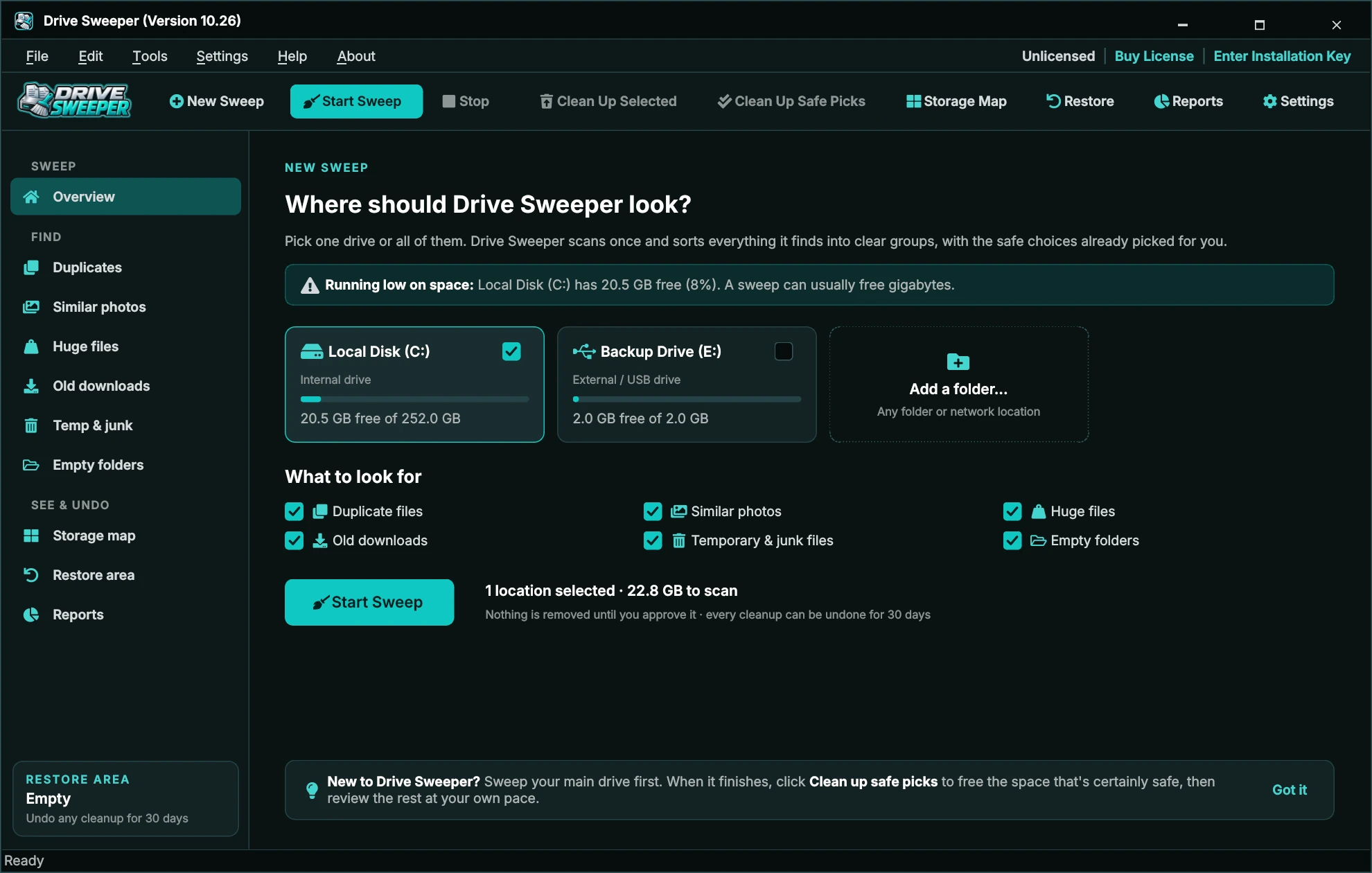
- 1Title bar - Drive Sweeper (Version 10.26), with minimise, maximise and close. Drag it to move the window; double-click it to maximise.
- 2Menu bar - File, Edit, Tools, Settings, Help and About. See Menus.
- 3License row - top right. Shows Licensed, or Unlicensed | Buy License | Enter Installation Key. See Your Installation Key.
- 4Toolbar - New Sweep, Start Sweep, Stop, Clean Up Selected, Clean Up Safe Picks, Storage Map, Restore, Reports and Settings. On a narrow window the buttons show icons only - hover for the name.
- 5Sidebar - Overview, the six result groups with how much each found, Storage map, Restore area and Reports.
- 6Restore area box - how much is being kept for undo.
- 7Main area - the page you picked in the sidebar.
- 8Status bar - what Drive Sweeper is doing, progress, and the space held in the restore area.
Starting a sweep
Choose where to look
On the Overview page every drive Drive Sweeper finds is shown as a card - internal drives, external and USB drives, and mapped network drives - with how much space is free. Click a card (or its tick box) to include it.

- Add a folder... (Ctrl+O) adds any folder, including a network folder such as
\\nas\photos. Added folders appear as cards with a Remove link. - What to look for - untick any group you don't want this time: Duplicate files, Similar photos, Huge files, Old downloads, Temporary & junk files, Empty folders.
- Your choices are remembered for next time.
If a drive is running low on space, a banner at the top of the Overview page says so. You can change the warning level, or turn it off, in Settings › General.
While it sweeps
Click Start Sweep (F5). Drive Sweeper shows each stage as it works: scanning files, comparing duplicates by content, comparing photos, finding temporary files and sorting results. You can keep using your PC - nothing is removed during a sweep.
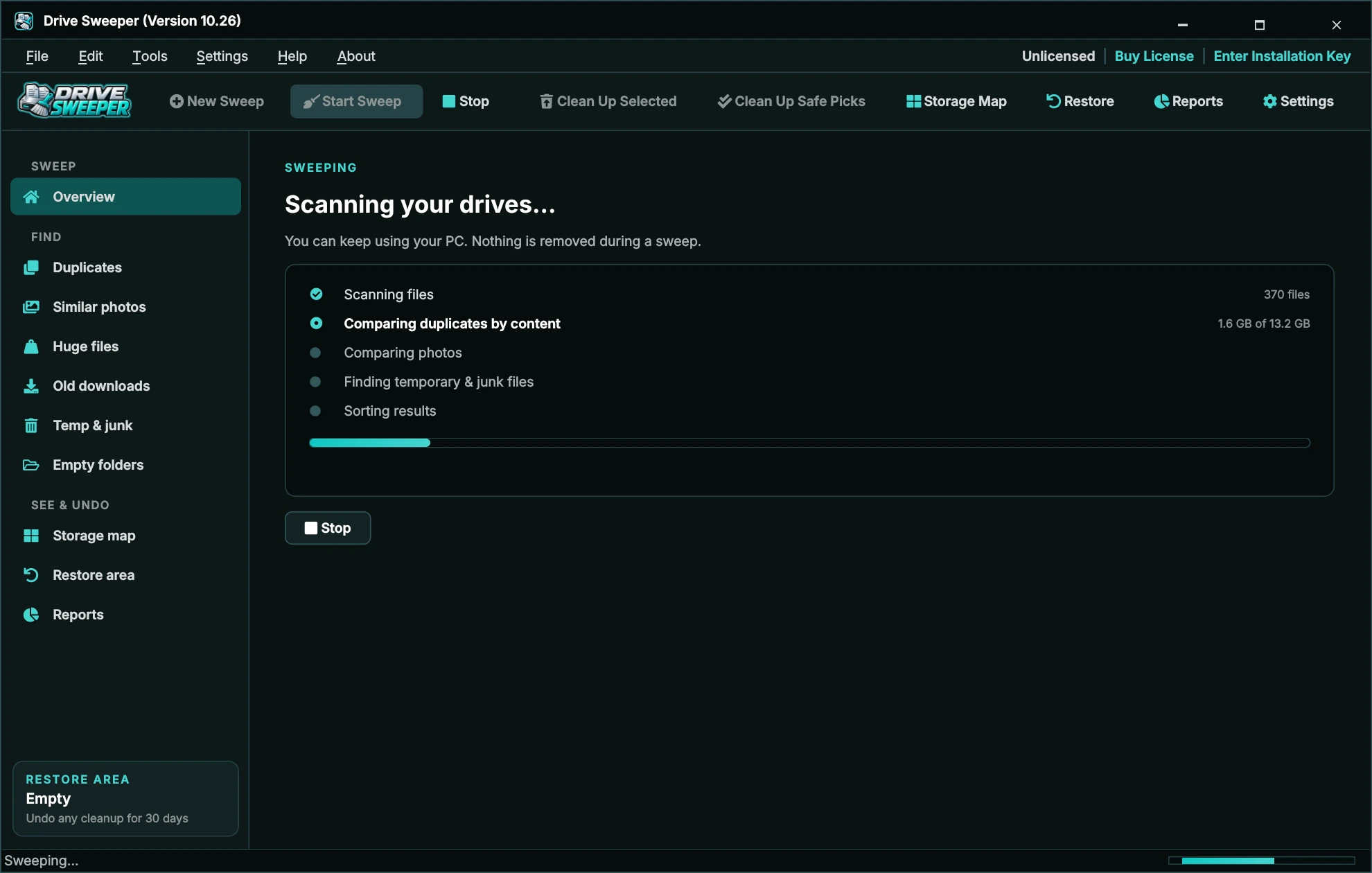
Click Stop (Esc) to cancel. Nothing is changed and you're taken back to the drive selection.
Your results
When the sweep finishes, the Overview page shows what was found.

| Tile | What it means |
|---|---|
| Found | All the space Drive Sweeper found across every group. |
| Safe to remove | Items labelled Safe. These are already ticked. |
| To review | Items labelled Review - you decide. |
| Freed this session | How much you've cleaned up since this sweep. |
Click any group to open its page, or click Clean up safe picks to clean up everything labelled Safe in one go. A file that appears in two groups (for example a huge file that is also a duplicate) is only counted once in the totals.
Safe, Review and Keep
Every item Drive Sweeper finds gets one of three labels:
| Label | Meaning | Ticked? |
|---|---|---|
| Safe | Certainly safe to remove: extra copies of a file on the same drive, installers and archives in Downloads you haven't opened for months, temporary files, empty folders. | Yes |
| Review | Probably not needed, but only you can tell: huge files, similar photos, other old downloads, copies on another drive (they may be deliberate backups). | No |
| Keep | The copy Drive Sweeper keeps in a duplicate group, or the photo it suggests keeping. It can't be ticked. | - |
What Drive Sweeper never touches
- The Windows folder, Program Files, ProgramData and other system areas, the page file and hibernation file.
- Application settings in AppData, and version-control folders such as
.git- except the known temporary and cache folders the junk finder looks in. - Files stored only in the cloud (OneDrive files-on-demand) - reading them would download them.
- Your main user folders (Desktop, Documents, Downloads, Pictures, Music, Videos...) are never offered as empty folders.
- Anything on your exclusion list.
Duplicate files and folders
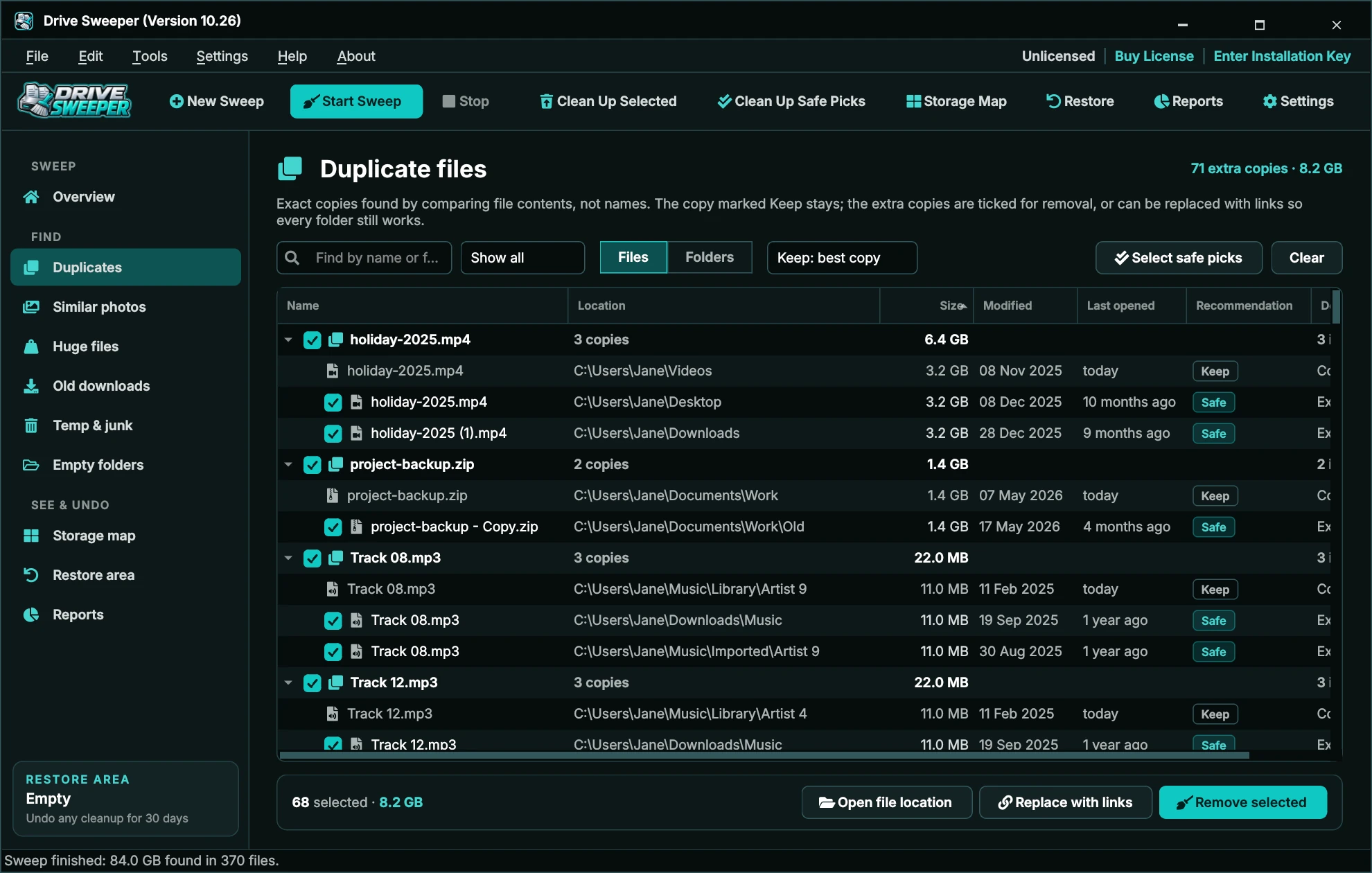
Drive Sweeper compares the content of files, not their names. It finds true copies even when they have different names, and never mistakes two different files with the same name for duplicates. Hard links to the same data are counted once.
Which copy is kept
Choose from the Keep: list on the page, from the Edit menu, or as your default in Settings › Cleanup:
| Keep | What it does |
|---|---|
| Best copy (recommended) | Keeps the copy on the drive that holds most of the copies, avoiding copies in Downloads, on the Desktop or named like "Copy of", "- Copy" or "(1)"; then the original (oldest). |
| Newest | Keeps the most recently changed copy. |
| Oldest | Keeps the oldest copy. |
To keep a different copy in one group, right-click it and choose Keep this copy instead.
Copies on a different drive from the kept copy are labelled Review and aren't ticked, because a copy on an external drive is often a deliberate backup.
Duplicate folders
Click Folders at the top of the page to see whole folders that are identical copies of another folder - same file names and the same contents, all the way down. Duplicate folders aren't ticked automatically; tick the copies you don't need.
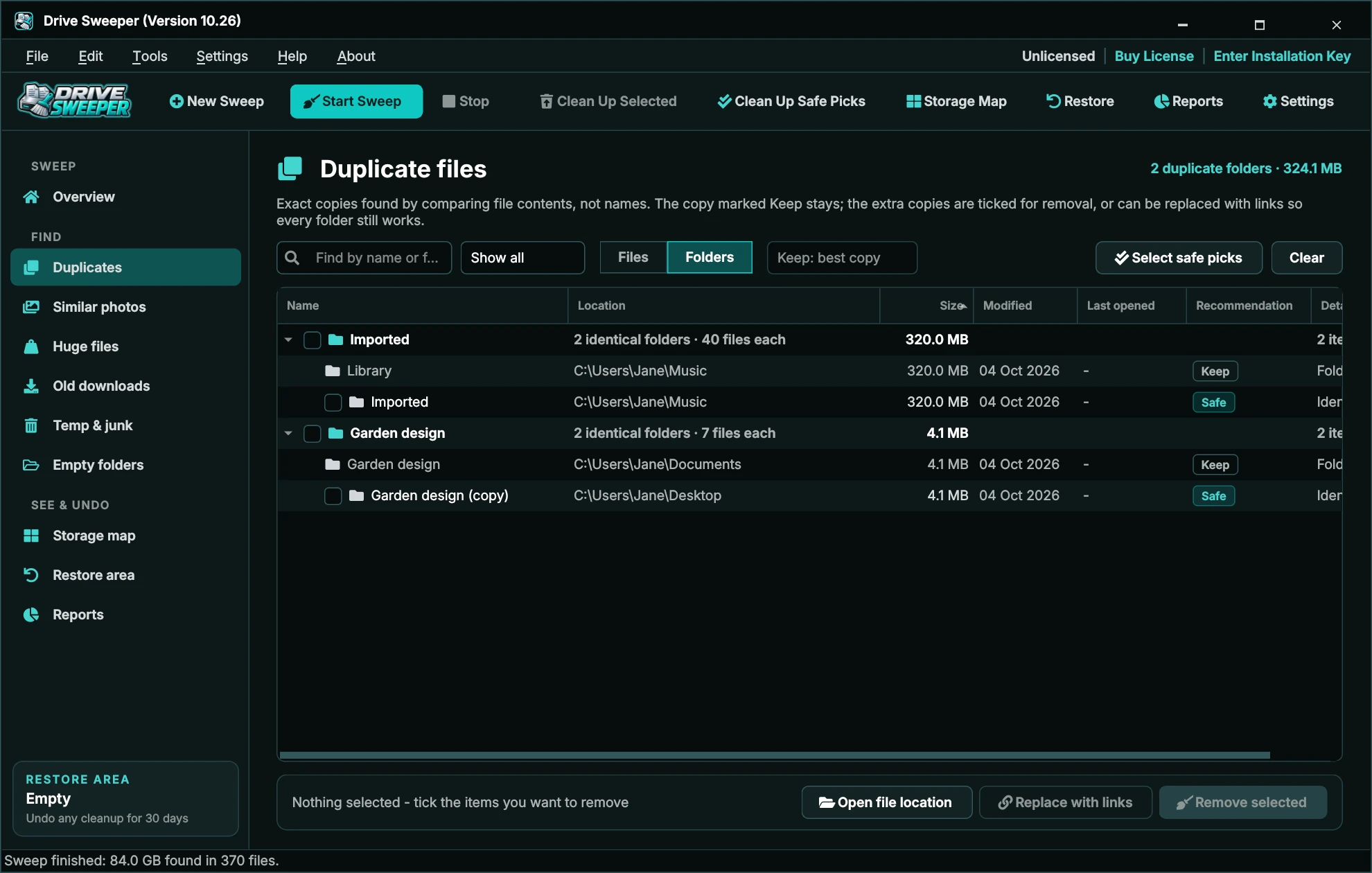
Finding and selecting
- Find (Ctrl+F) filters by file or folder name.
- Show lets you see only Safe or only Review items.
- Select safe picks ticks every Safe item; Clear unticks everything. Click a column heading to sort.
- Double-click an item, or use Open file location, to see it in File Explorer. Right-click for Open, Copy path and Never sweep this folder.
Similar photos
The photo finder spots the same photo in different sizes and formats (for example a resized copy you emailed, or a PNG made from a JPEG) and near-identical burst shots. JPEG, PNG, BMP, GIF, TIFF and WebP photos are compared.

- Pick a group on the left. Each photo shows its resolution, size, date and a sharpness bar.
- The largest, sharpest photo is suggested as the one to keep. Click Keep this one on any other photo to keep it instead.
- Tick Remove this photo on the ones you don't need, or click Keep suggested, remove the rest for this group, or Keep suggested in every group.
- Click a photo to open its folder.
How close photos must be to count as similar is set in Settings › Scanning (Strict, Normal or Loose).
Huge files
The biggest files on your drives - forgotten videos, disk images, old game backups and virtual machines - with when each was last opened. Nothing is ticked: review each one and tick what you no longer need.
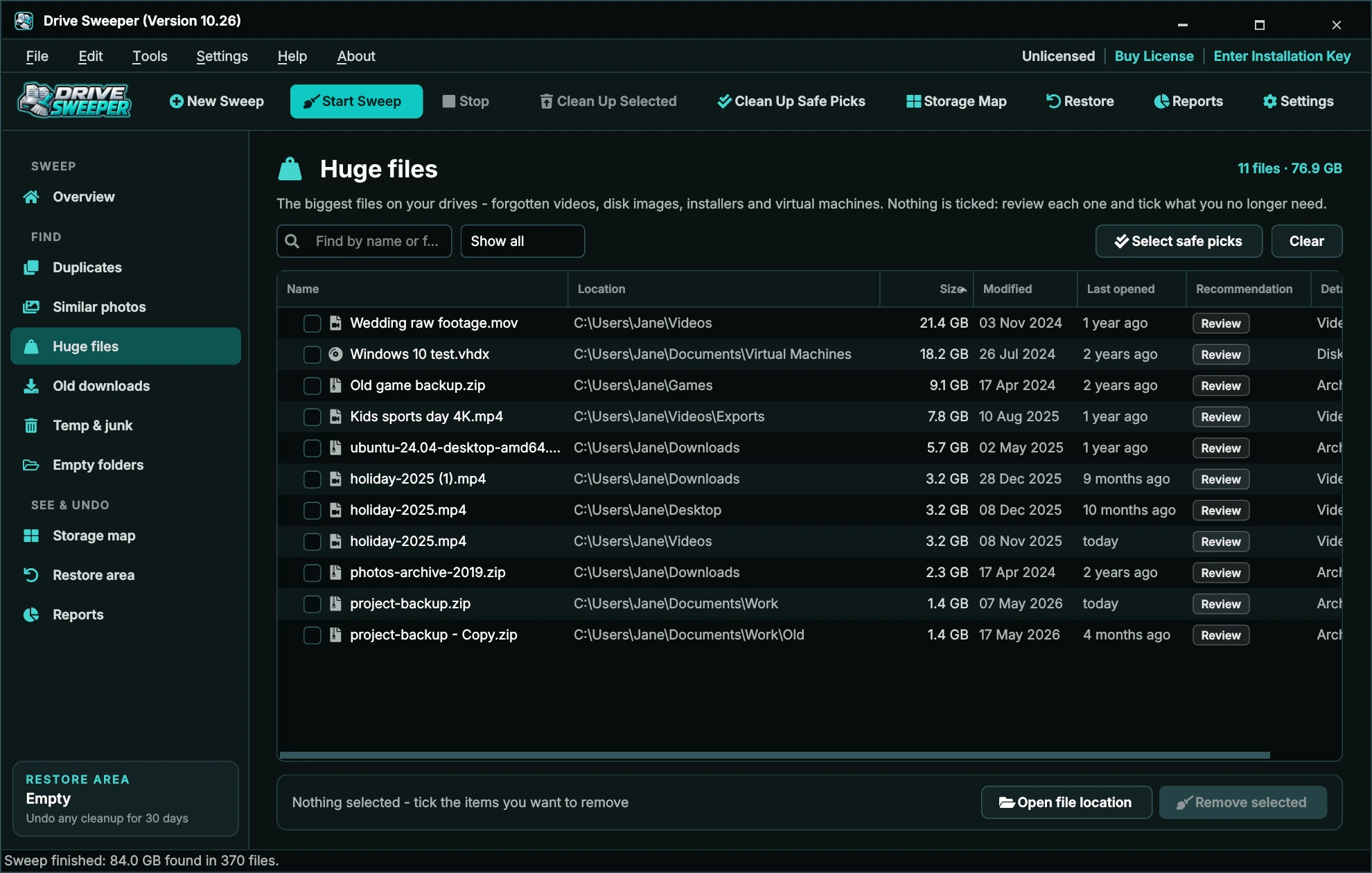
Files of 1 GB or more are listed by default. Change the size in Settings › Scanning.
Old downloads
Files in your Downloads folders that haven't been opened for 12 months (you can change this). Installers and archives (.exe, .msi, .zip, .iso and similar) are labelled Safe and ticked - you can download them again if you ever need them. Other files are labelled Review.

Windows doesn't always record when a file was last opened, so Drive Sweeper uses whichever is newer: last opened or last changed. Files you've used recently are never listed.
Temporary & junk files
Drive Sweeper only looks in known temporary and cache folders. Windows and your apps re-create these files when they need them, so they're labelled Safe and ticked.
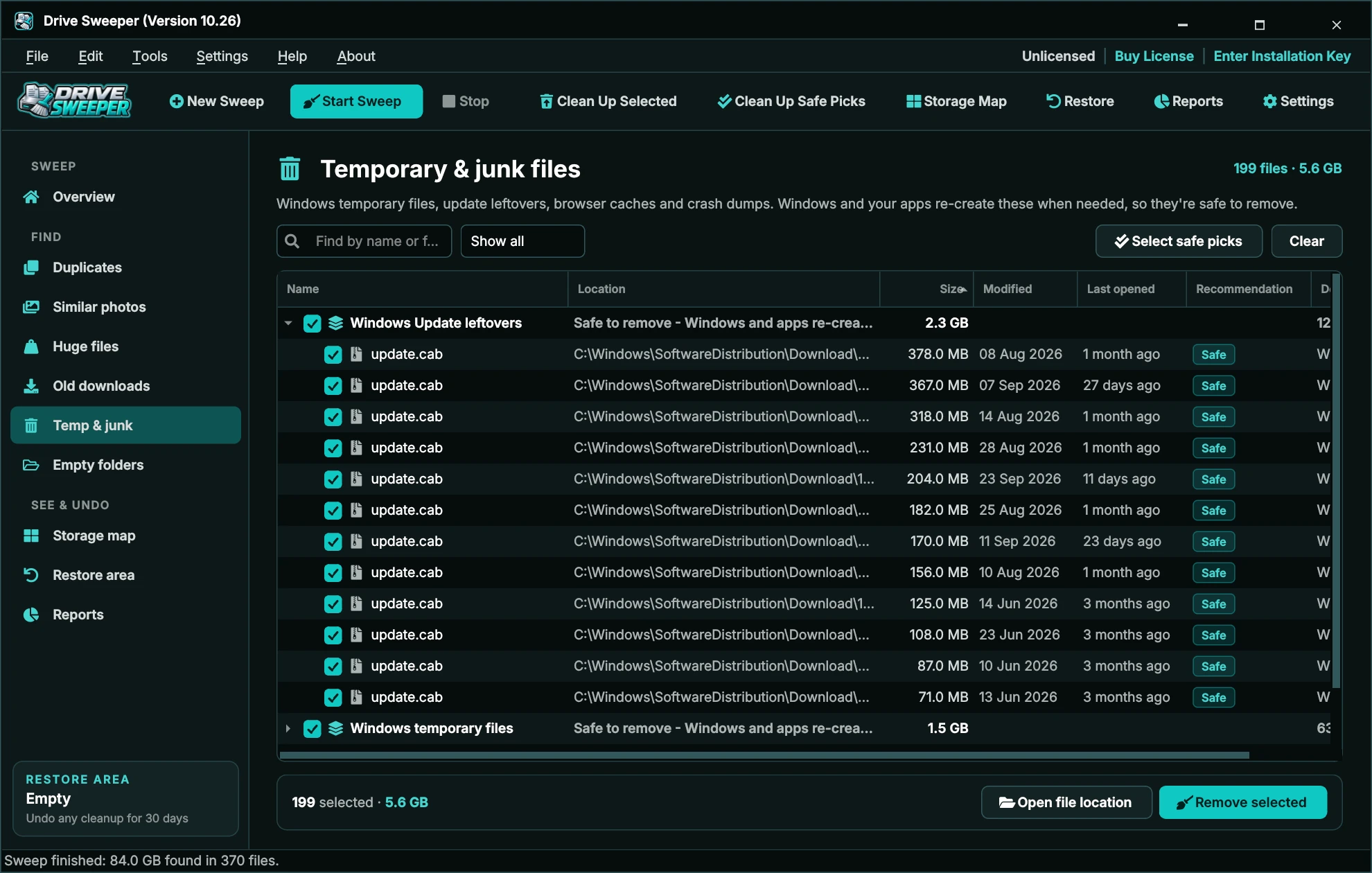
| Group | Where |
|---|---|
| Windows temporary files | Your Temp folder and the Windows Temp folder (files at least a day old). |
| Windows Update leftovers | Downloaded update files Windows has finished with, and the Delivery Optimization cache (at least 3 days old). |
| Browser caches | Chrome, Edge, Brave and Firefox caches. |
| Crash dumps & error reports | Program crash dumps, Windows minidumps and Windows Error Reporting files. |
| Old log files | Old Windows component servicing logs (at least 7 days old). |
Files changed recently are skipped because they may still be in use. A browser that's open can lock its cache - close it first to clean more.
Empty folders
Folders with no files in them, often left behind by uninstalled programs and old projects. Only the top-most empty folder is listed, so removing it tidies everything inside. Windows system folders, your main user folders and folders Drive Sweeper couldn't read are always skipped.
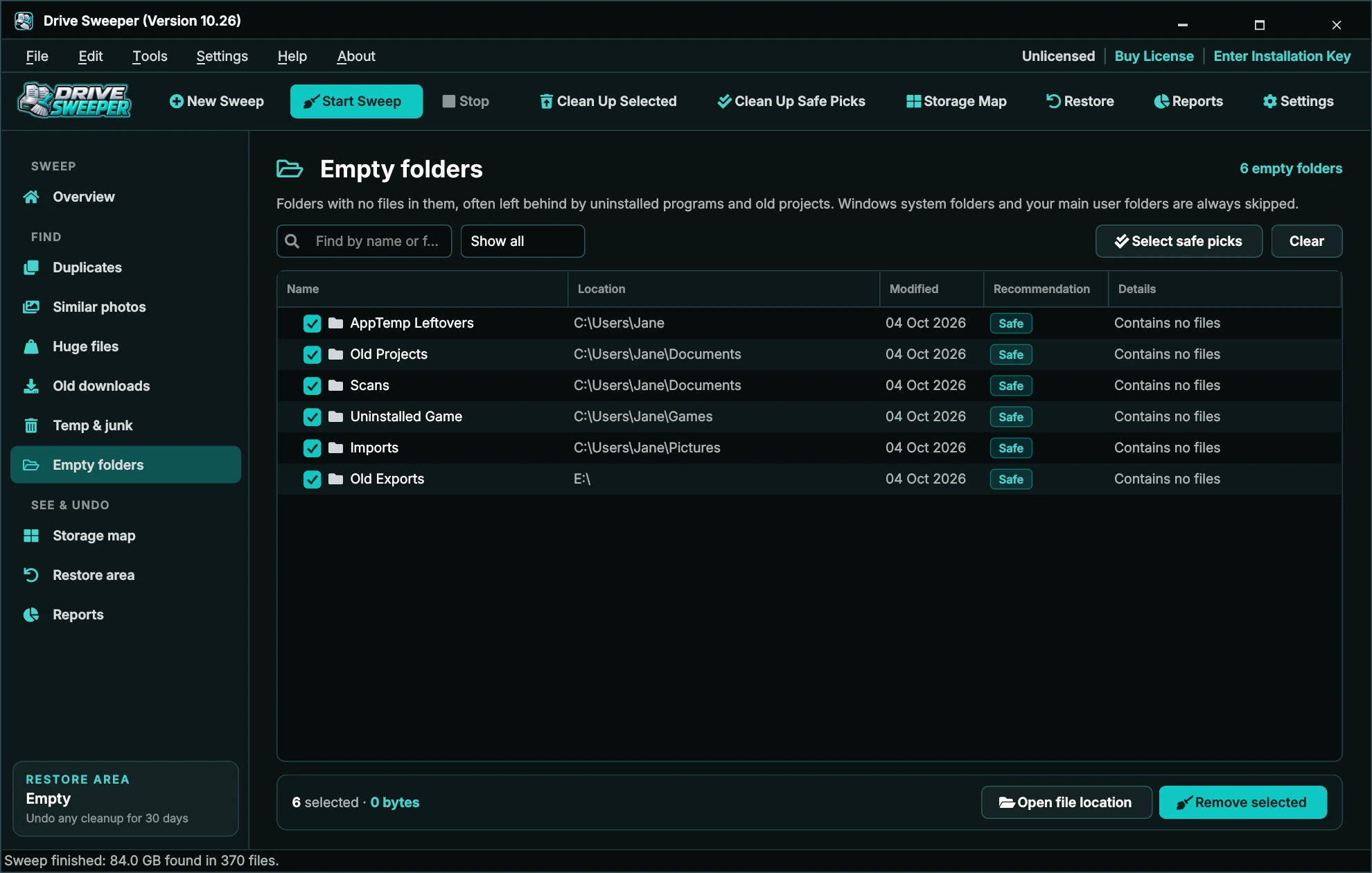
Cleaning up
There are three ways to clean up:
- Clean up safe picks on the Overview page or toolbar - everything labelled Safe, in every group.
- Remove selected at the bottom of any results page - just the items you ticked there.
- File › Clean Up Selected... (Delete) - the items ticked on the page you're looking at.
Drive Sweeper shows what will be removed, group by group, and asks you to confirm (you can turn this off in Settings › Cleanup).
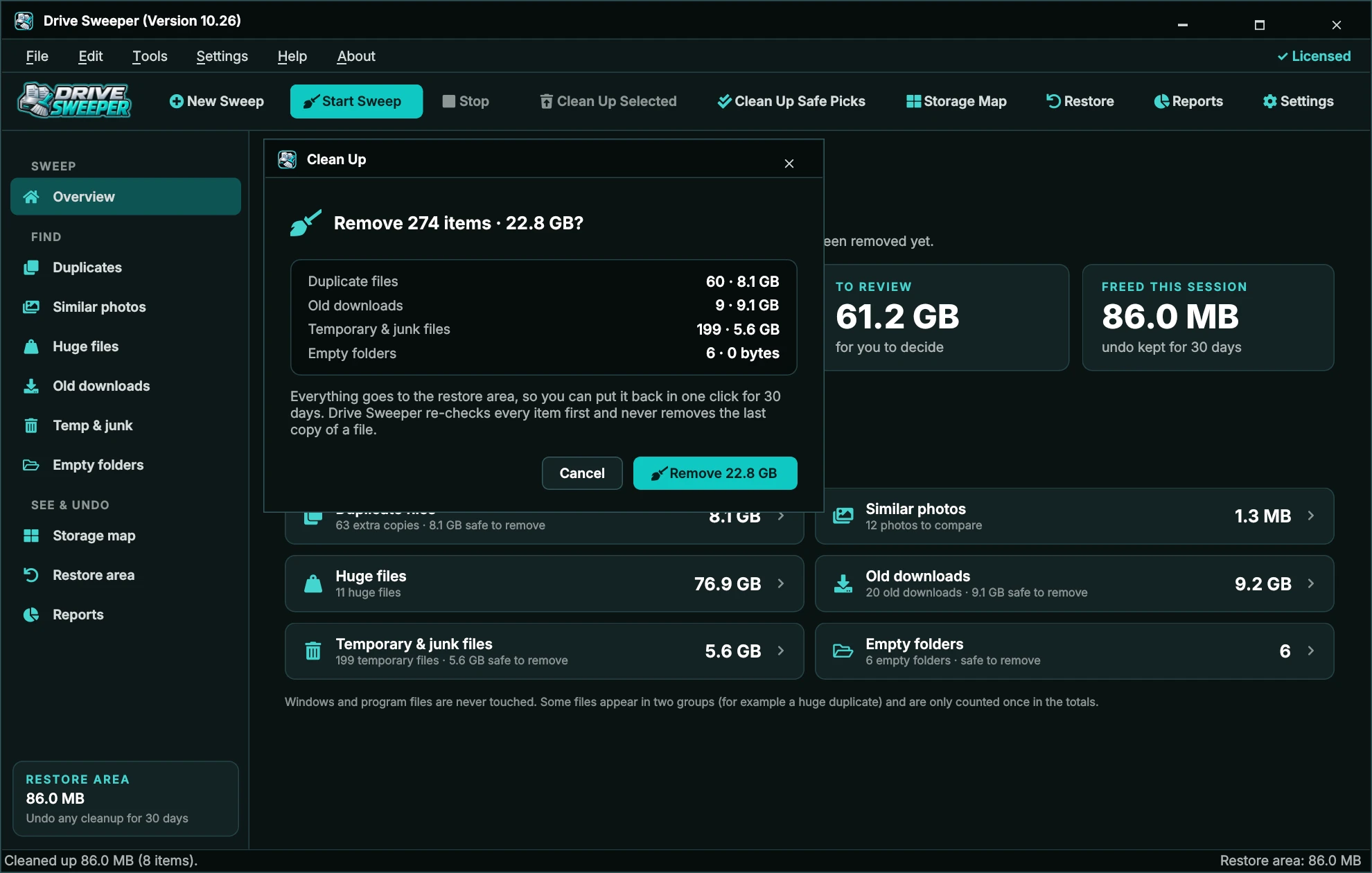
Checks before anything is moved
Every item is checked again first. An item is skipped - and listed so you can see why - if:
- it no longer exists, or has changed since the sweep (sweep again to include it);
- it is in a protected Windows or program location;
- it is the last remaining copy of a duplicate or photo - Drive Sweeper always keeps at least one;
- an "empty" folder now has files in it;
- it's in use by another program, or Windows denies access.
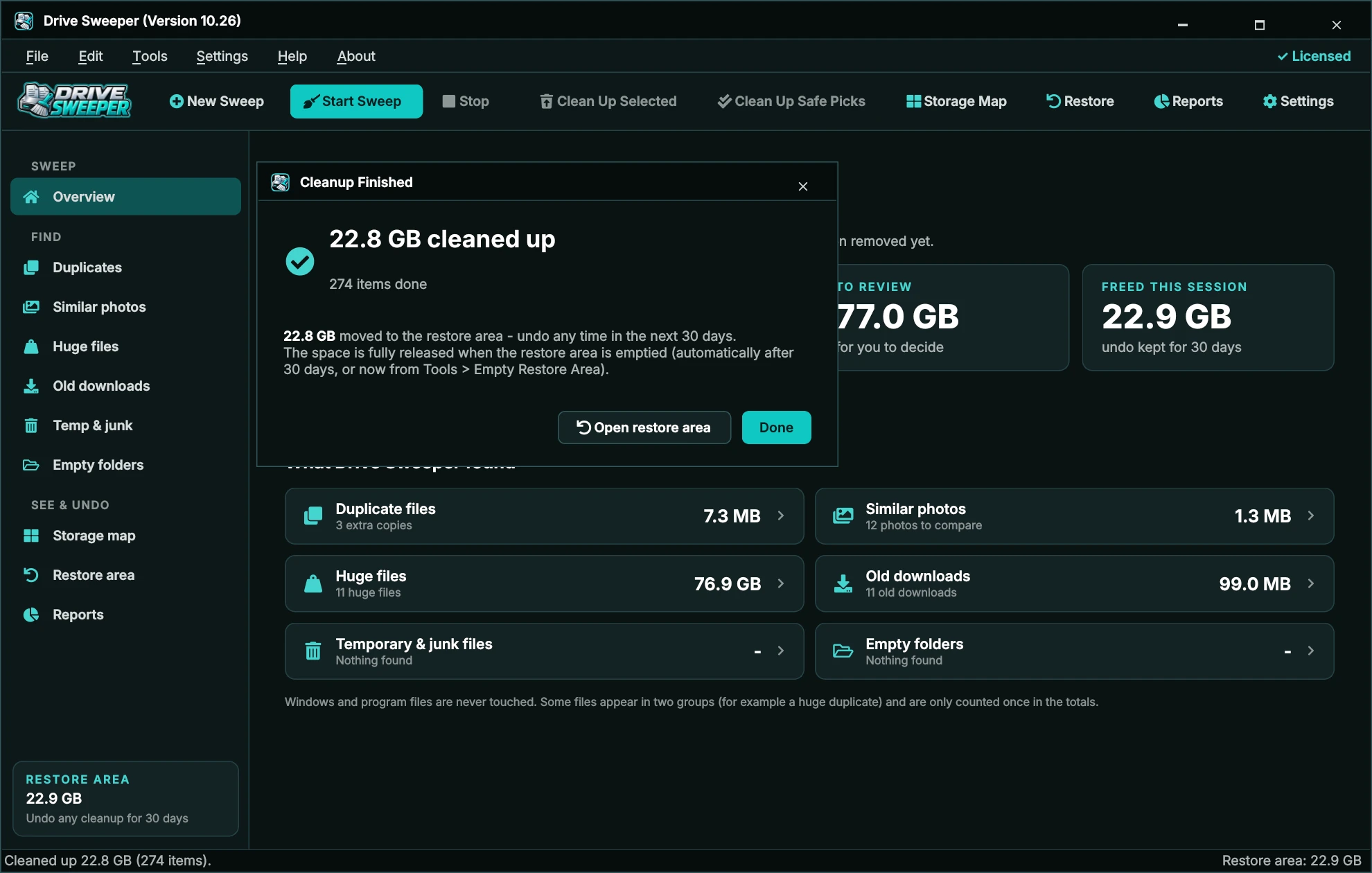
Everything goes to the restore area. The space is fully released when the restore area is emptied - automatically after 30 days, or straight away with Tools › Empty Restore Area...
Removing files needs an activated Installation Key. If Drive Sweeper isn't activated it explains this and offers Enter Installation Key and Buy License. Scanning, the storage map, reports and restoring are always available.

Replace with links
Sometimes you want a file to stay in several folders - a song in two playlists' folders, say. On the Duplicate files page, tick the extra copies and click Replace with links. Each extra copy is replaced with a link to the copy being kept, so every folder still has a working file but the space is only used once.
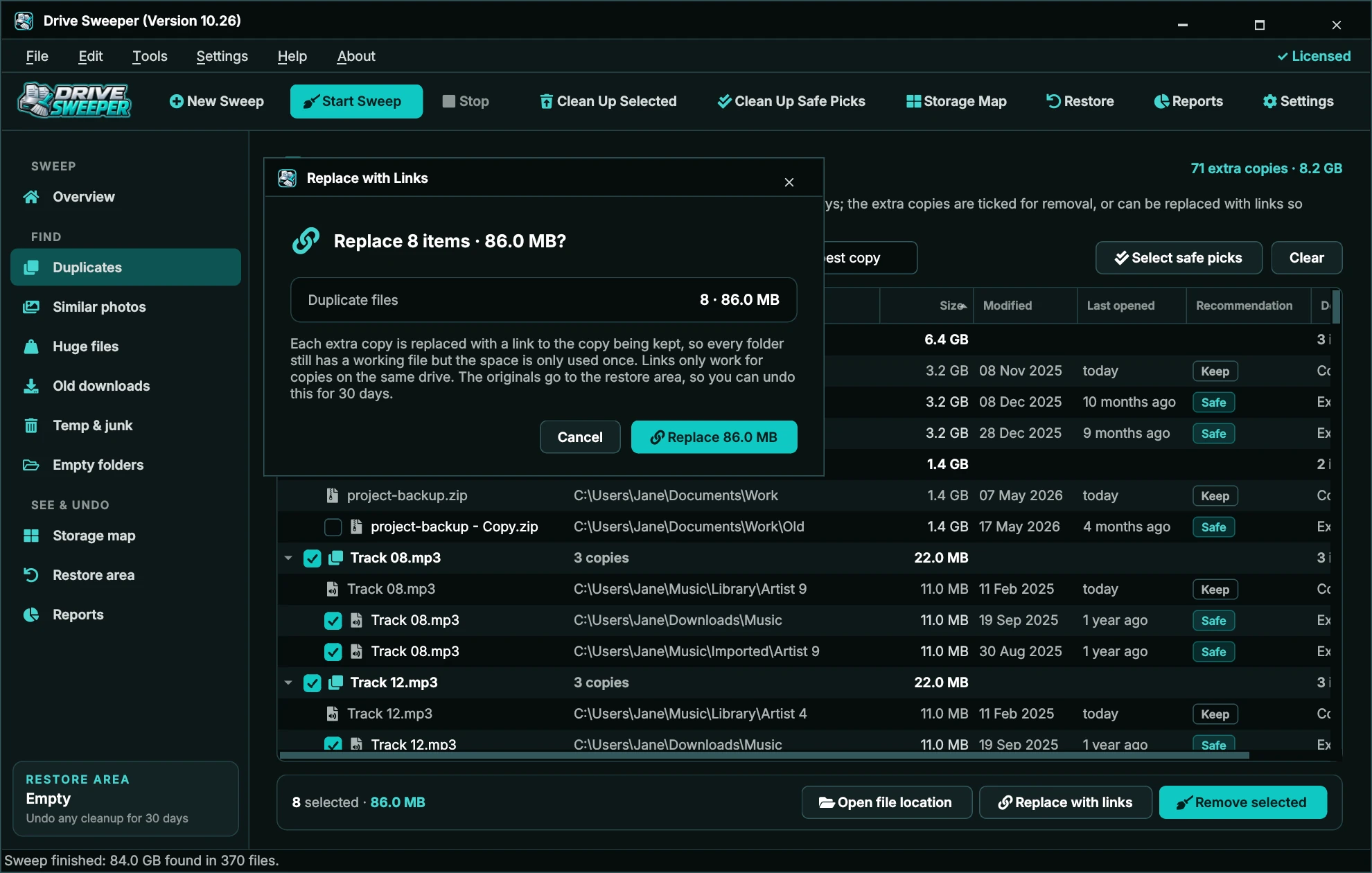
- Links work for copies on the same drive as the kept copy (Drive Sweeper uses NTFS hard links). Copies on other drives are skipped.
- The original copies go to the restore area, so you can undo this for 30 days.
- Because the links share one file, editing the file in one folder changes it everywhere. Use links for files you don't edit, like music, videos and installers.
The restore area (undo)
Everything Drive Sweeper removes is kept in the restore area for 30 days, so you can put it back in one click. Open it from the sidebar, the toolbar or Tools › Restore Area (Ctrl+R).
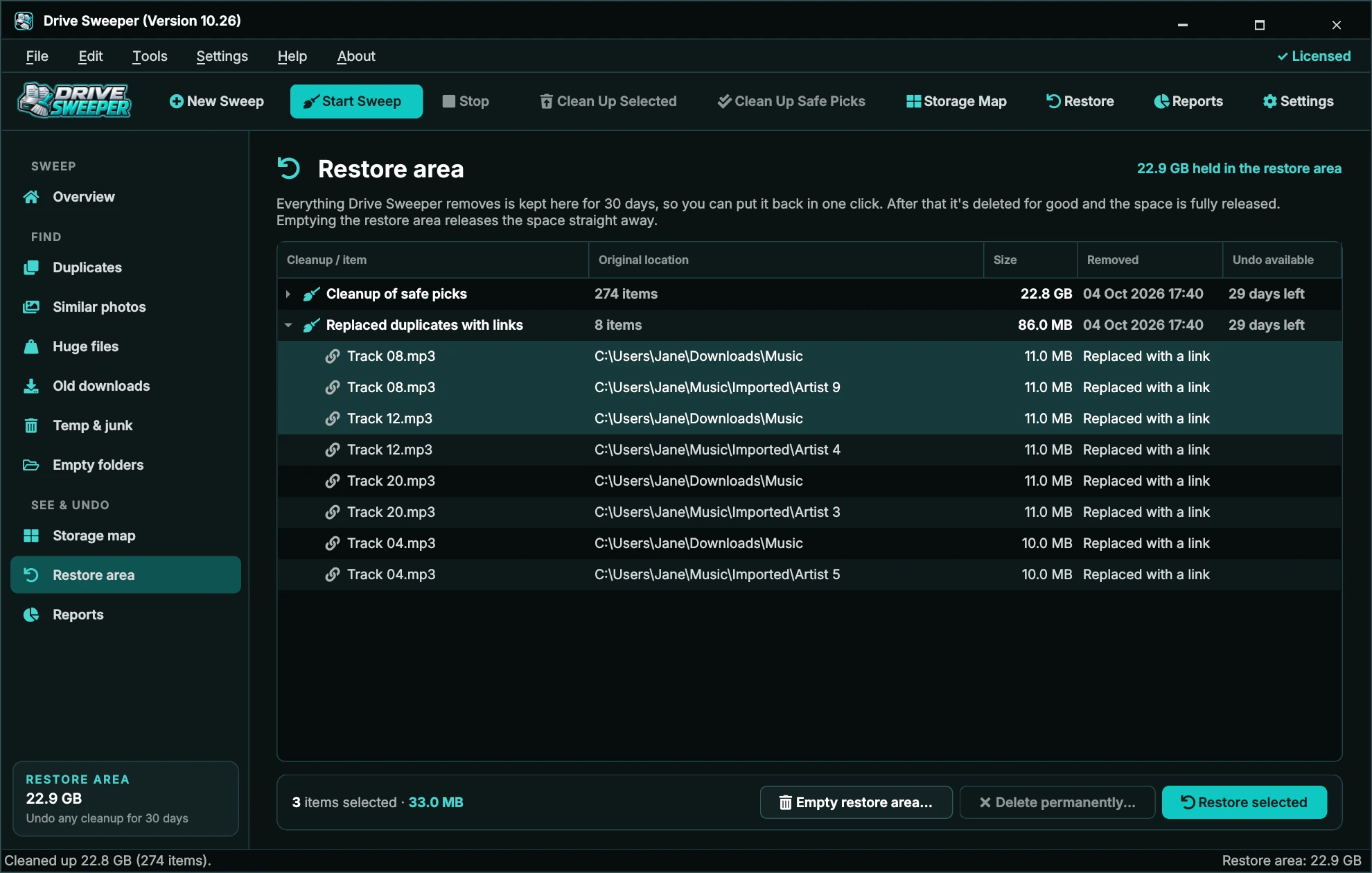
- Select a whole cleanup, or expand it and select individual items.
- Click Restore selected and confirm.
- Items go back exactly where they came from. If something new has taken a file's place, the restored copy is named "(restored)" so nothing is overwritten. Links are swapped back for the original files.
Releasing the space
- After 30 days, items are deleted for good automatically the next time Drive Sweeper starts.
- Delete permanently... deletes the selected cleanups now.
- Empty restore area... (or Tools › Empty Restore Area...) deletes everything now and releases the space straight away.
Wherever possible the restore area is a hidden DriveSweeper Restore folder at the top of the same drive, so moving files there is instant. If that isn't possible (for example on a network folder), files are kept in Drive Sweeper's folder in %LOCALAPPDATA%. Drive Sweeper never sweeps its own restore area.
Storage map
The storage map shows every folder as a block sized by how much space it uses, so you can spot the folder eating your drive in seconds. It shows the drives and folders from your last sweep.
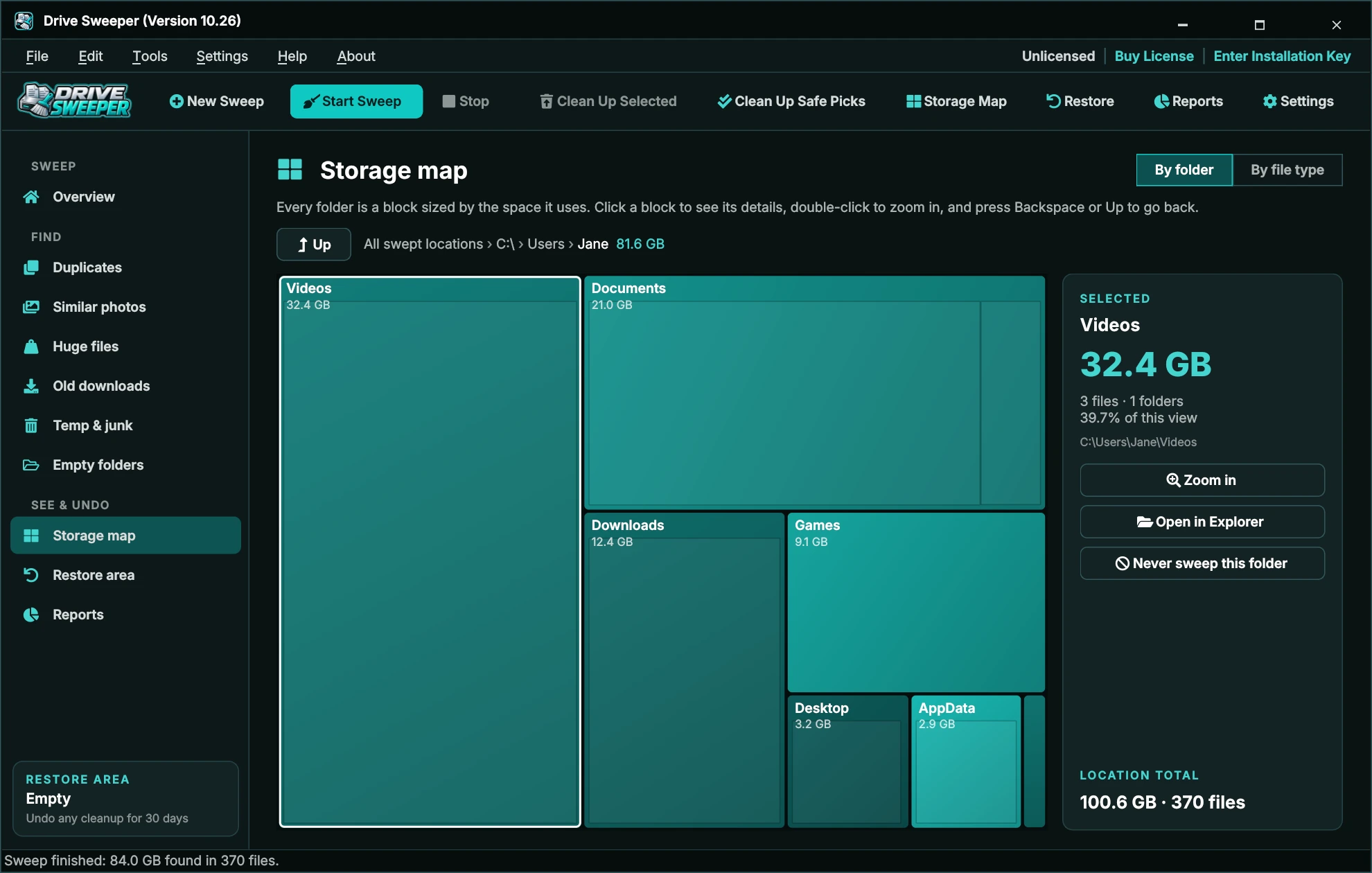
- Click a block to see its size, number of files and folders, and share of the view.
- Double-click (or Zoom in) to go inside it. Up, Backspace or the mouse back button go up a level. The path you're in is shown above the map.
- Open in Explorer opens the folder; Never sweep this folder adds it to your exclusion list.
- Windows and program folders are shown in grey - they count towards your space but are never cleaned.
By file type
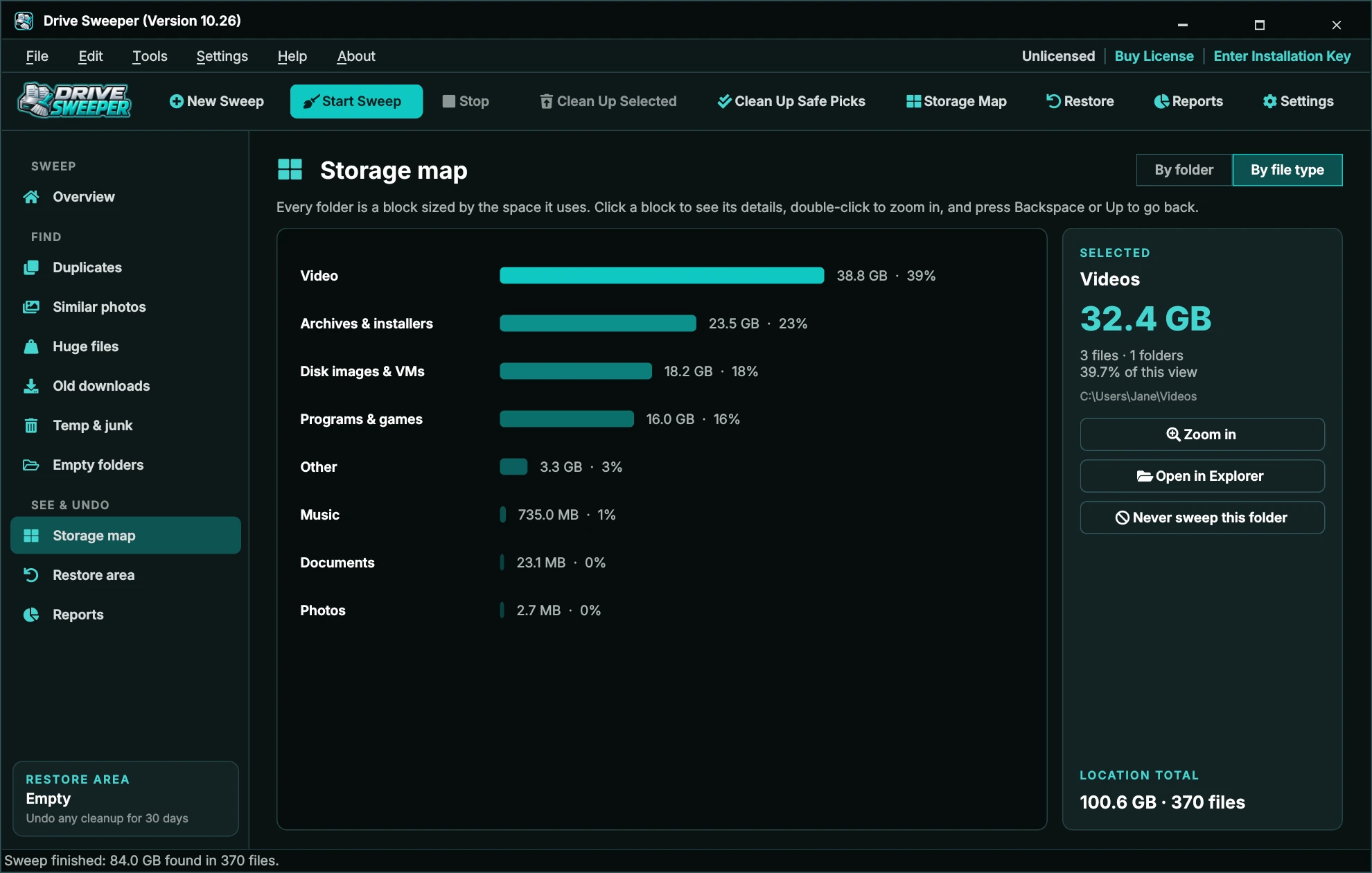
Click By file type to see how much of your space is video, archives and installers, disk images, programs, music, documents and photos.
Reports & exporting
The Reports page shows how much space you've cleaned up in total, every cleanup with what it removed by group, and a chart of each drive's used space over time (recorded each time you sweep; dashed lines mark cleanups).
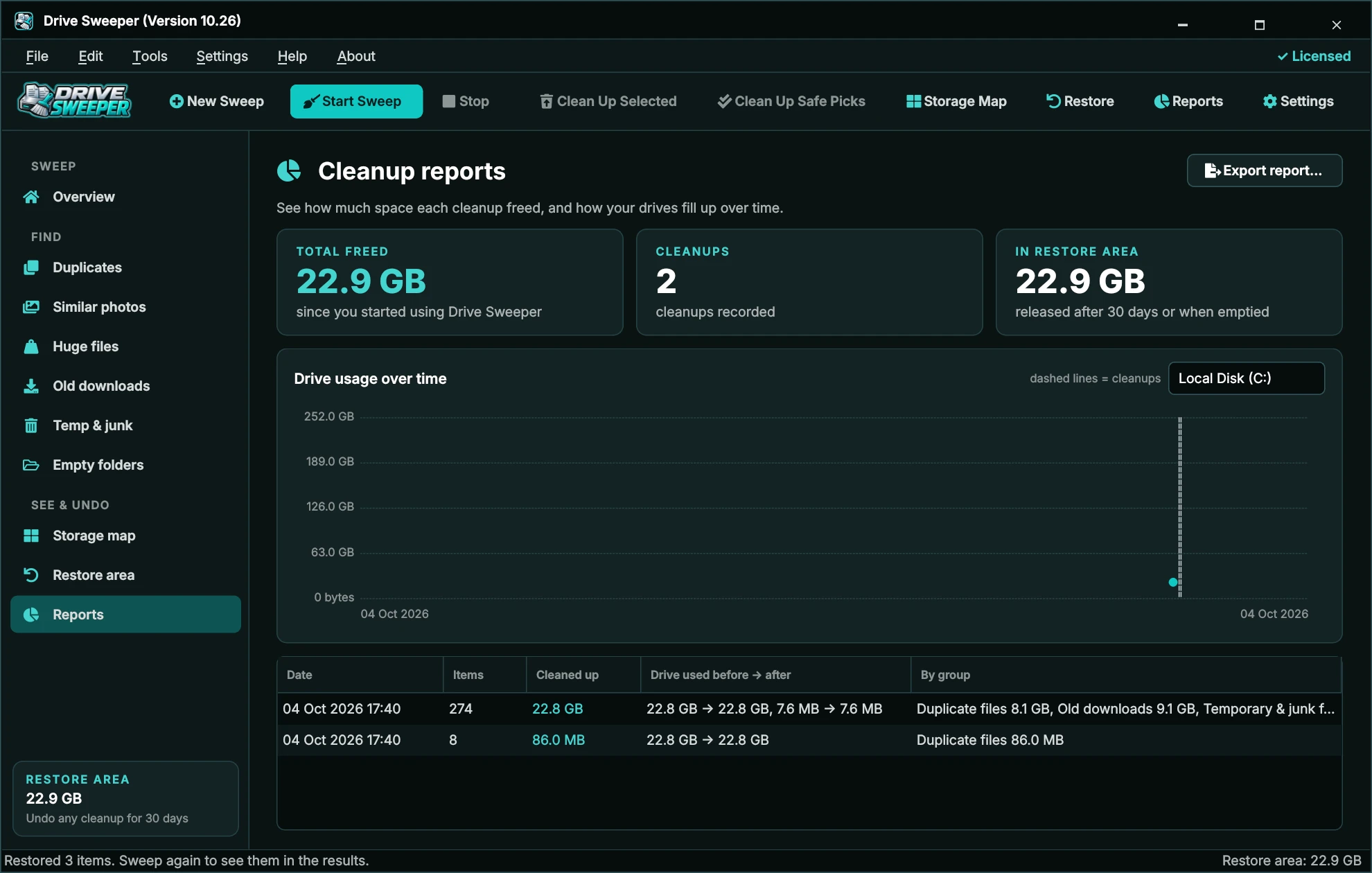
- Export report... (or File › Export Cleanup Report...) saves the report as a web page you can open, print or share.
- File › Export Results... (Ctrl+E) saves the current sweep results as a CSV file for Excel.
Space moved to the restore area still counts as used on the drive until the restore area is emptied, so a drive's "used" figure only drops after that.
Scheduled sweeps & low-space alerts
Drive Sweeper can sweep every week or every month in the background and let you know what it found. Set it up in Tools › Scheduled Sweeps... (the Schedule tab of Settings).
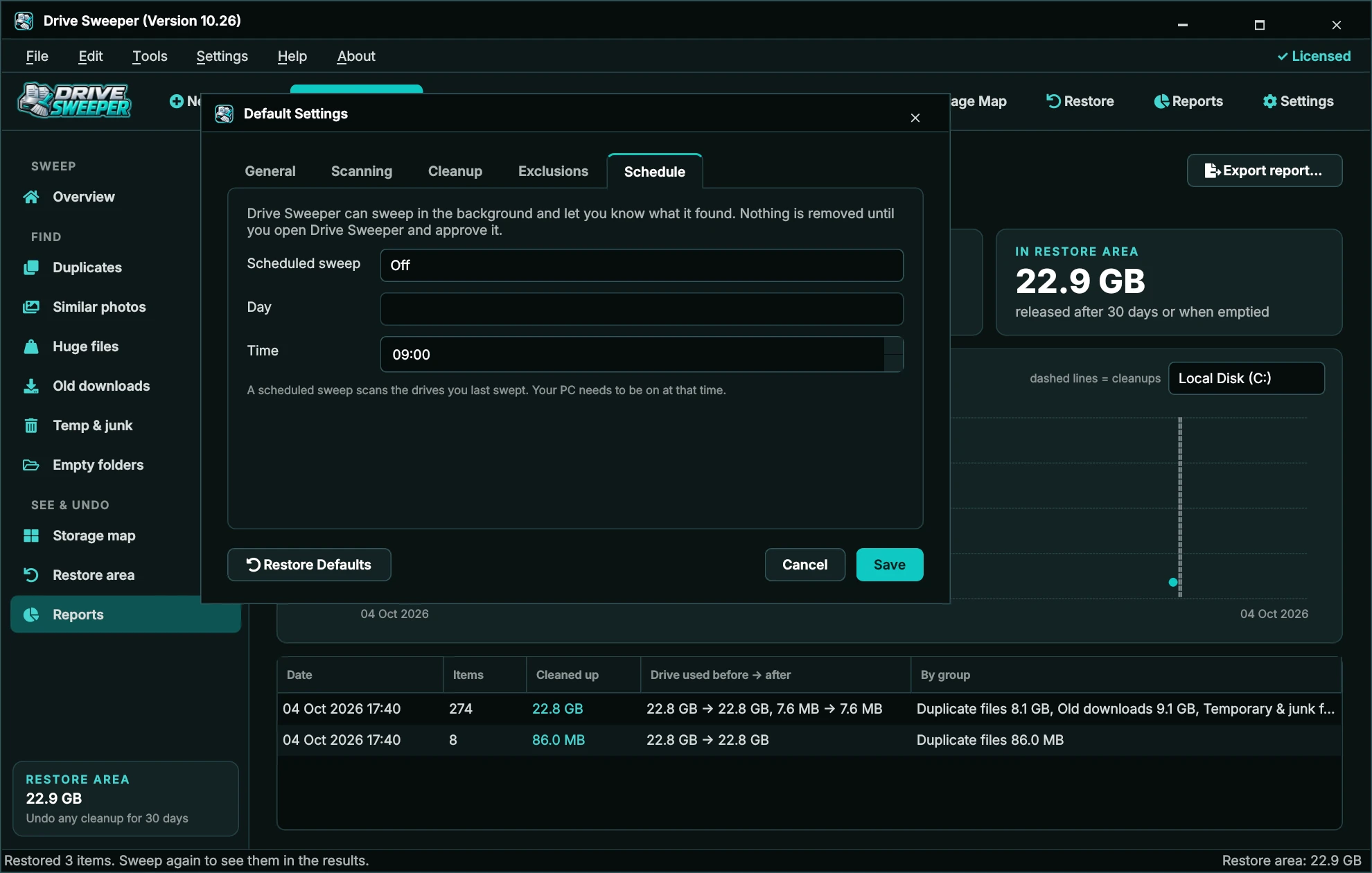
- Choose Every week or Every month, the day and the time, and click Save.
- Drive Sweeper adds a task to Windows Task Scheduler. At that time it sweeps the drives you last swept, without opening its window.
- A notification shows what it found, and warns if a drive is low on space. Click the notification to open the results.
Nothing is ever removed by a scheduled sweep - you review and approve the cleanup yourself. Your PC needs to be on at the scheduled time. Choose Off to stop scheduled sweeps; uninstalling Drive Sweeper removes the scheduled task.
Exclusion list
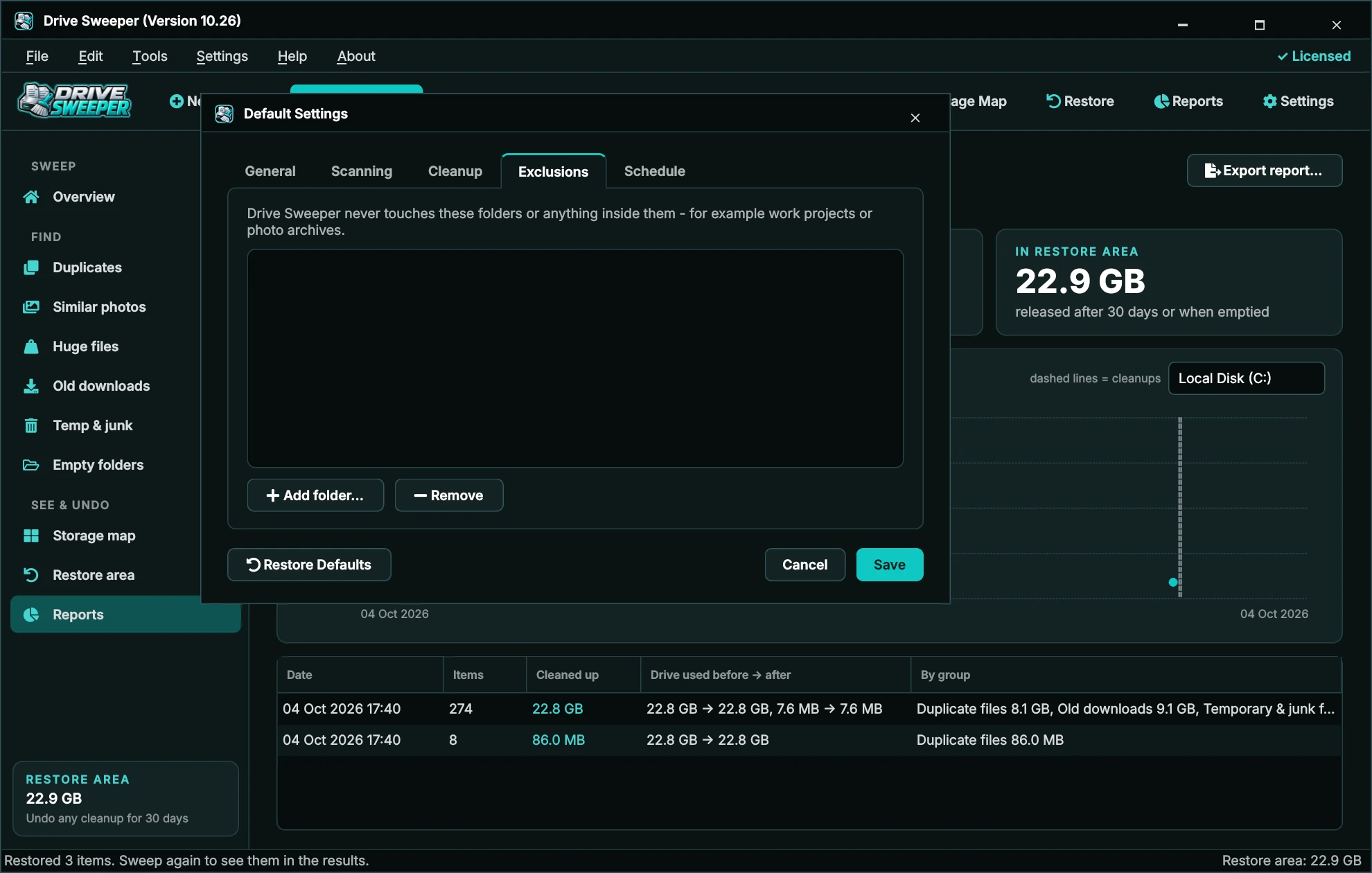
Folders on the exclusion list are never looked inside or touched - for example work projects or photo archives. Manage it in Tools › Exclusion List... (the Exclusions tab of Settings) with Add folder... and Remove.
You can also right-click any result and choose Never sweep this folder, or use the button on the storage map. Excluded items disappear from the current results straight away.
Settings
Open Settings › Default Settings... (Ctrl+,) or the Settings toolbar button. Click Save to keep your changes. Scanning changes apply to your next sweep.
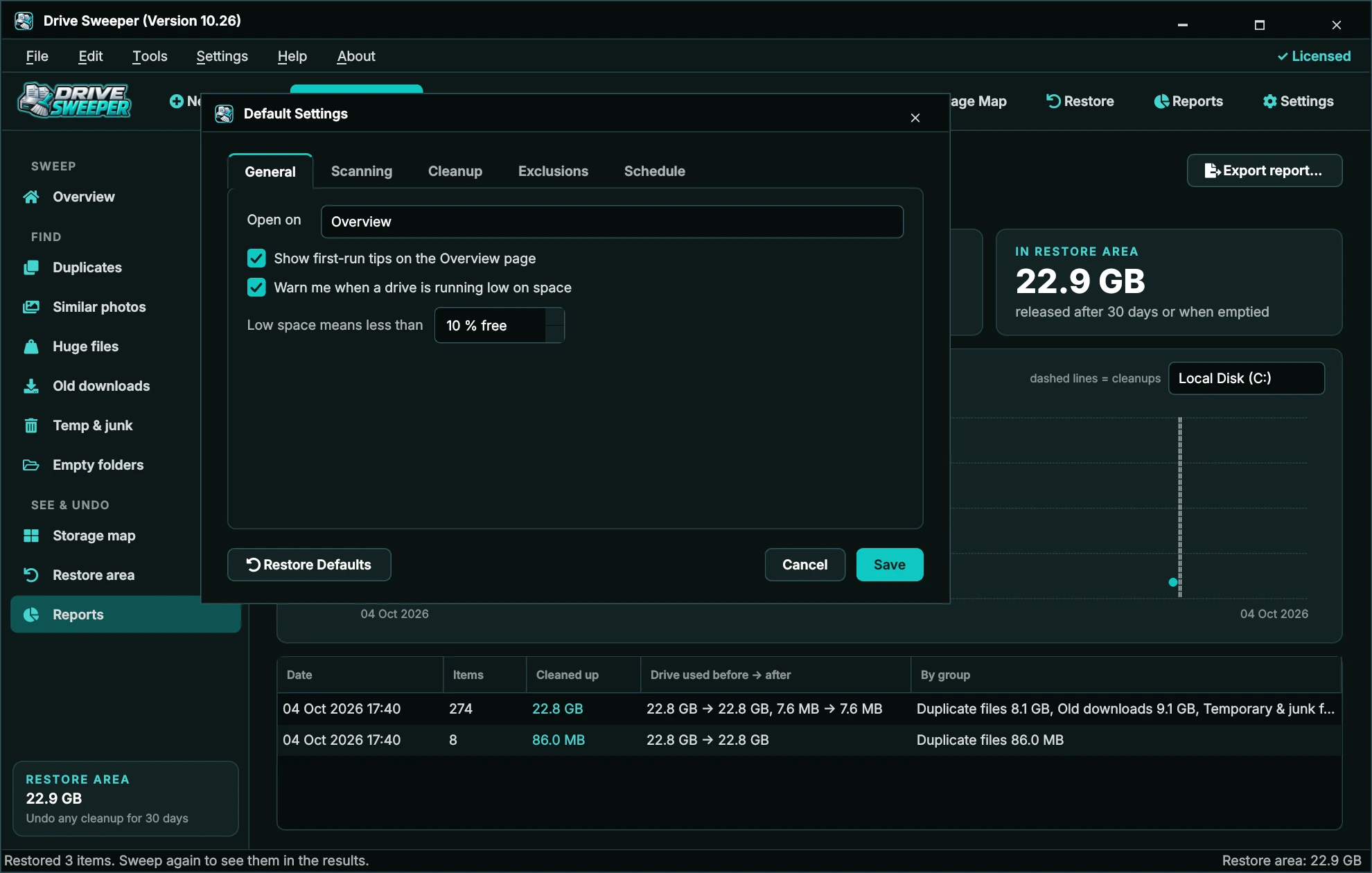
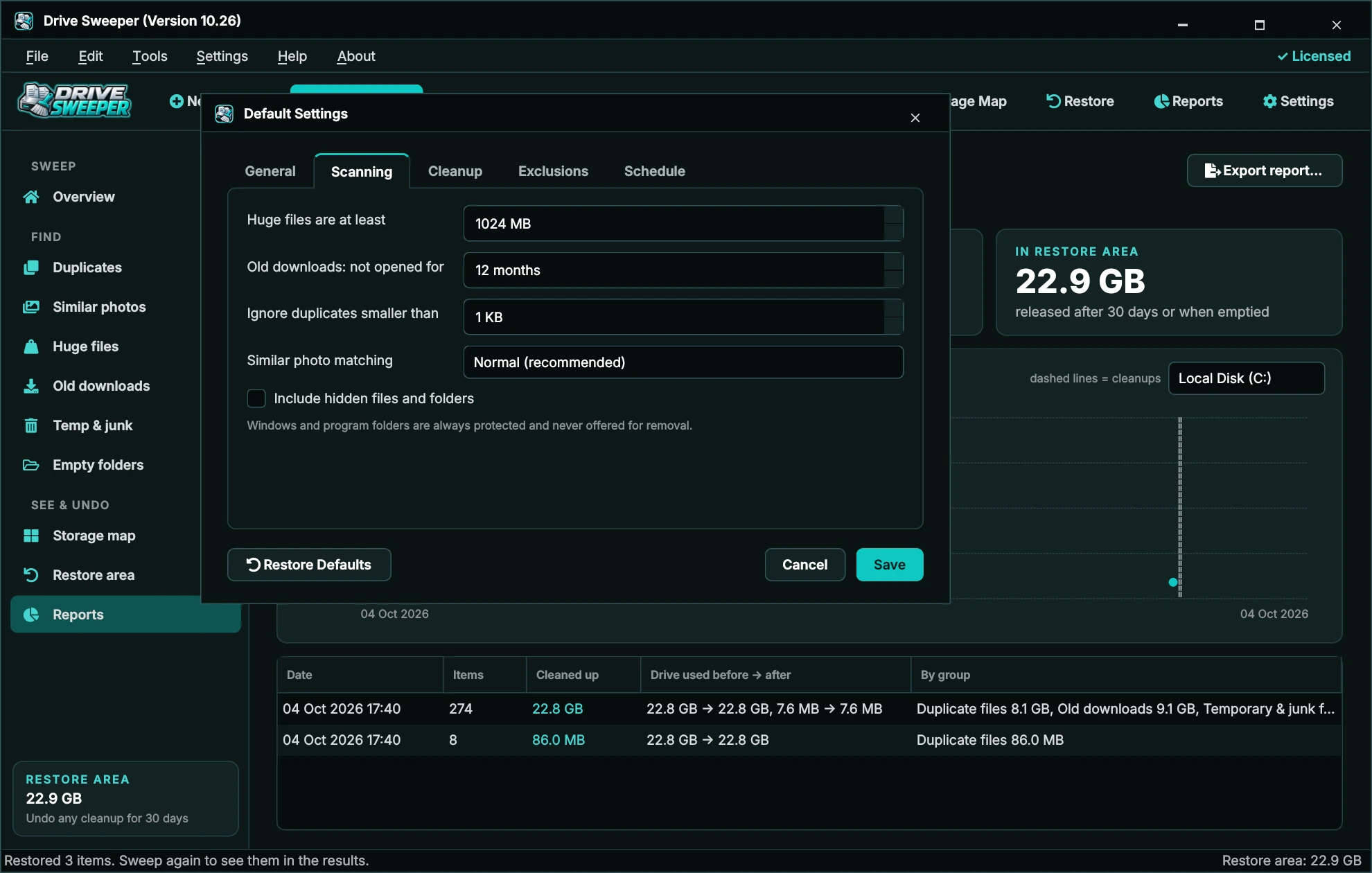
General
| Setting | What it does | Default |
|---|---|---|
| Open on | The page shown when Drive Sweeper starts. | Overview |
| Show first-run tips | Shows the tip box on the Overview page. | On |
| Warn me when a drive is running low on space | Shows the low-space banner, and the warning after scheduled sweeps. | On |
| Low space means less than | Percentage of free space that counts as low. | 10% |
Scanning
| Setting | What it does | Default |
|---|---|---|
| Huge files are at least | Minimum size for the Huge files group. | 1024 MB |
| Old downloads: not opened for | How long a download must be unused. | 12 months |
| Ignore duplicates smaller than | Skips tiny files when finding duplicates. | 1 KB |
| Similar photo matching | Strict (near-identical only), Normal, or Loose (more similar shots). | Normal |
| Include hidden files and folders | Offers hidden files for cleanup too. They always count on the storage map. | Off |
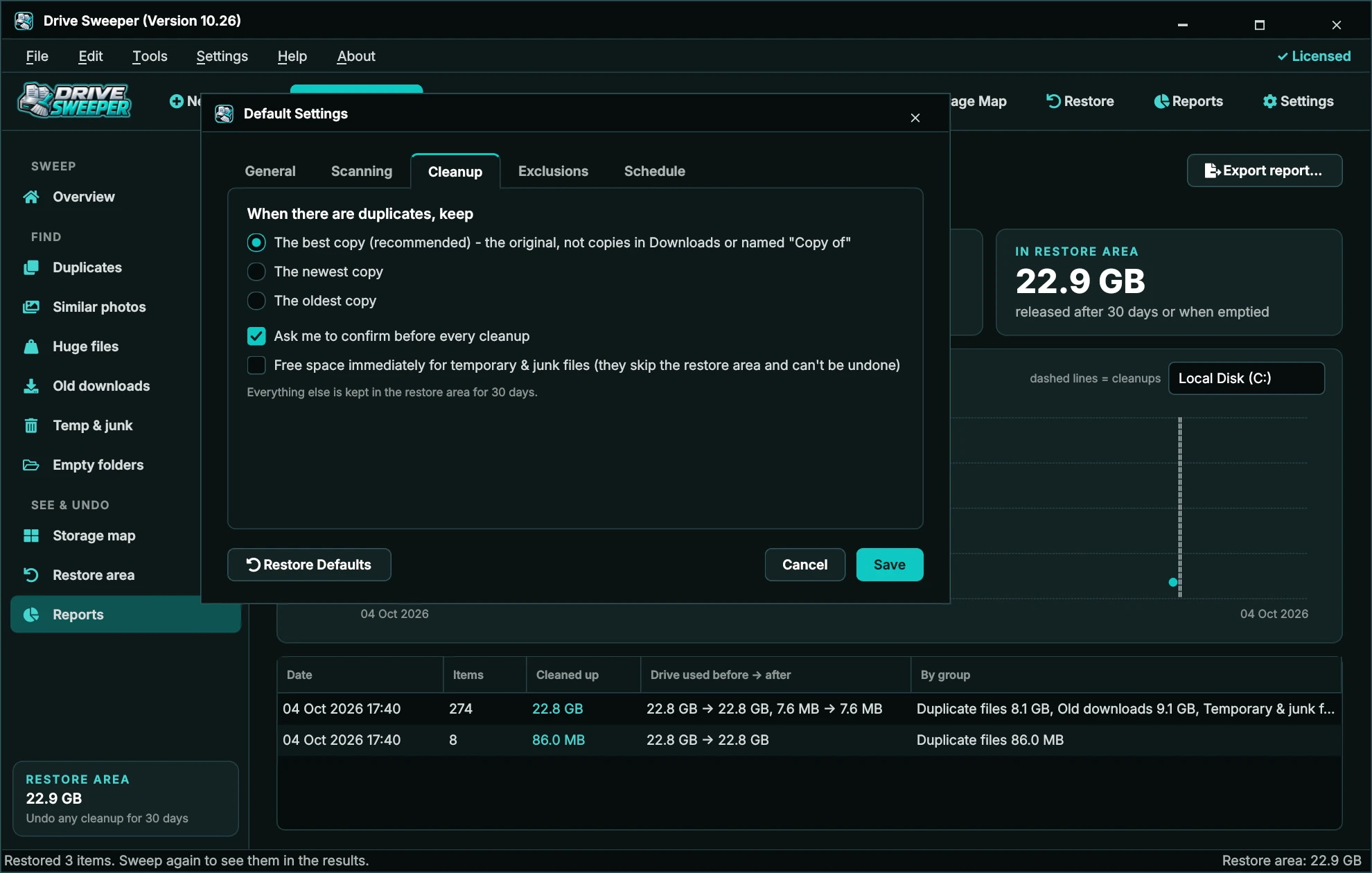
Cleanup
| Setting | What it does | Default |
|---|---|---|
| When there are duplicates, keep | Best copy, newest or oldest. See Duplicate files. | Best copy |
| Ask me to confirm before every cleanup | Shows the confirmation before removing. Replace with links always asks. | On |
| Free space immediately for temporary & junk files | Deletes temporary files straight away instead of keeping them in the restore area. These can't be undone. | Off |
Exclusions and Schedule
See Exclusion list and Scheduled sweeps.
Restore Defaults
Restore Defaults puts every setting on every tab back to how it was when Drive Sweeper was installed, including the exclusion list and scheduled sweeps. Your restore area, reports and activation are not affected. Drive Sweeper asks you to confirm first.

Settings are stored in %APPDATA%\Easier Software LLC\Drive Sweeper.
Menus
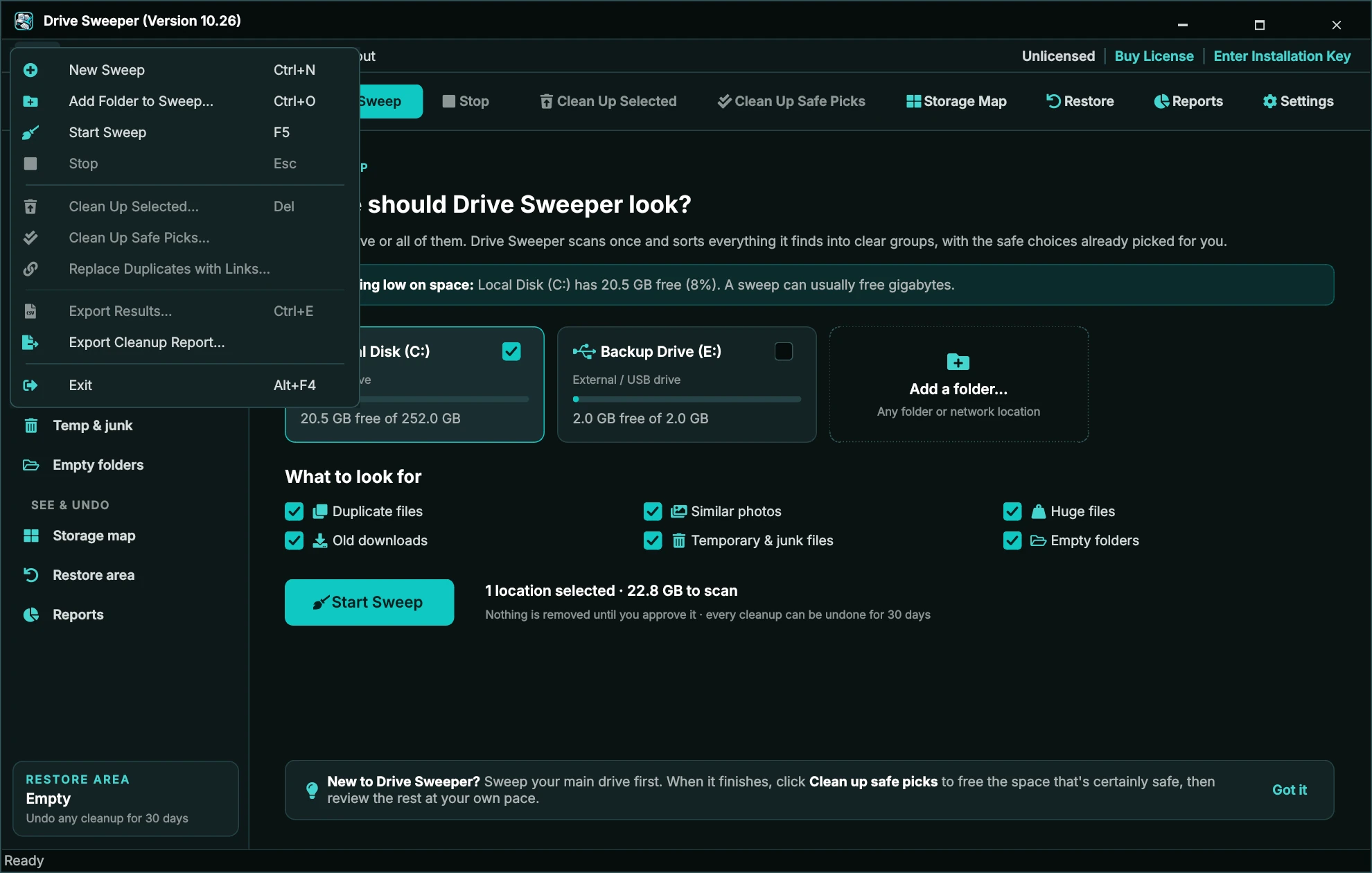
File
| Command | What it does |
|---|---|
| New Sweep Ctrl+N | Back to the drive selection. |
| Add Folder to Sweep... Ctrl+O | Add any folder or network folder. |
| Start Sweep F5 / Stop Esc | Start or stop a sweep. |
| Clean Up Selected... Delete | Remove the ticked items on the current page. |
| Clean Up Safe Picks... | Remove everything labelled Safe. |
| Replace Duplicates with Links... | See Replace with links. |
| Export Results... Ctrl+E / Export Cleanup Report... | Save results as CSV, or the cleanup report as a web page. |
| Exit Alt+F4 | Close Drive Sweeper. If it's busy, it asks first. |
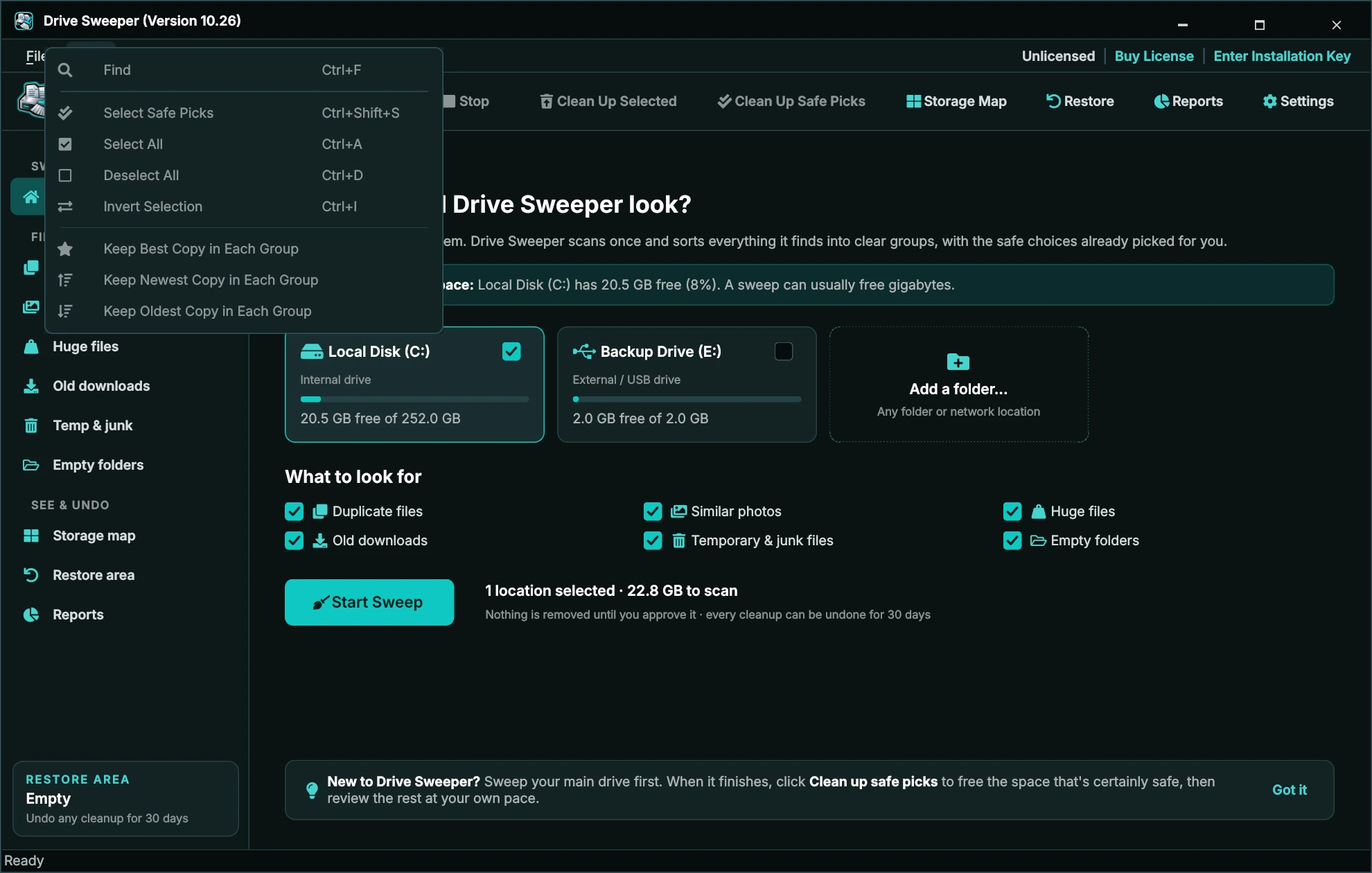
Edit
| Command | What it does |
|---|---|
| Find Ctrl+F | Search the current results page. |
| Select Safe Picks, Select All, Deselect All, Invert Selection | Tick items on the current page. |
| Keep Best / Newest / Oldest Copy in Each Group | Change which copy is kept in every duplicate group. |
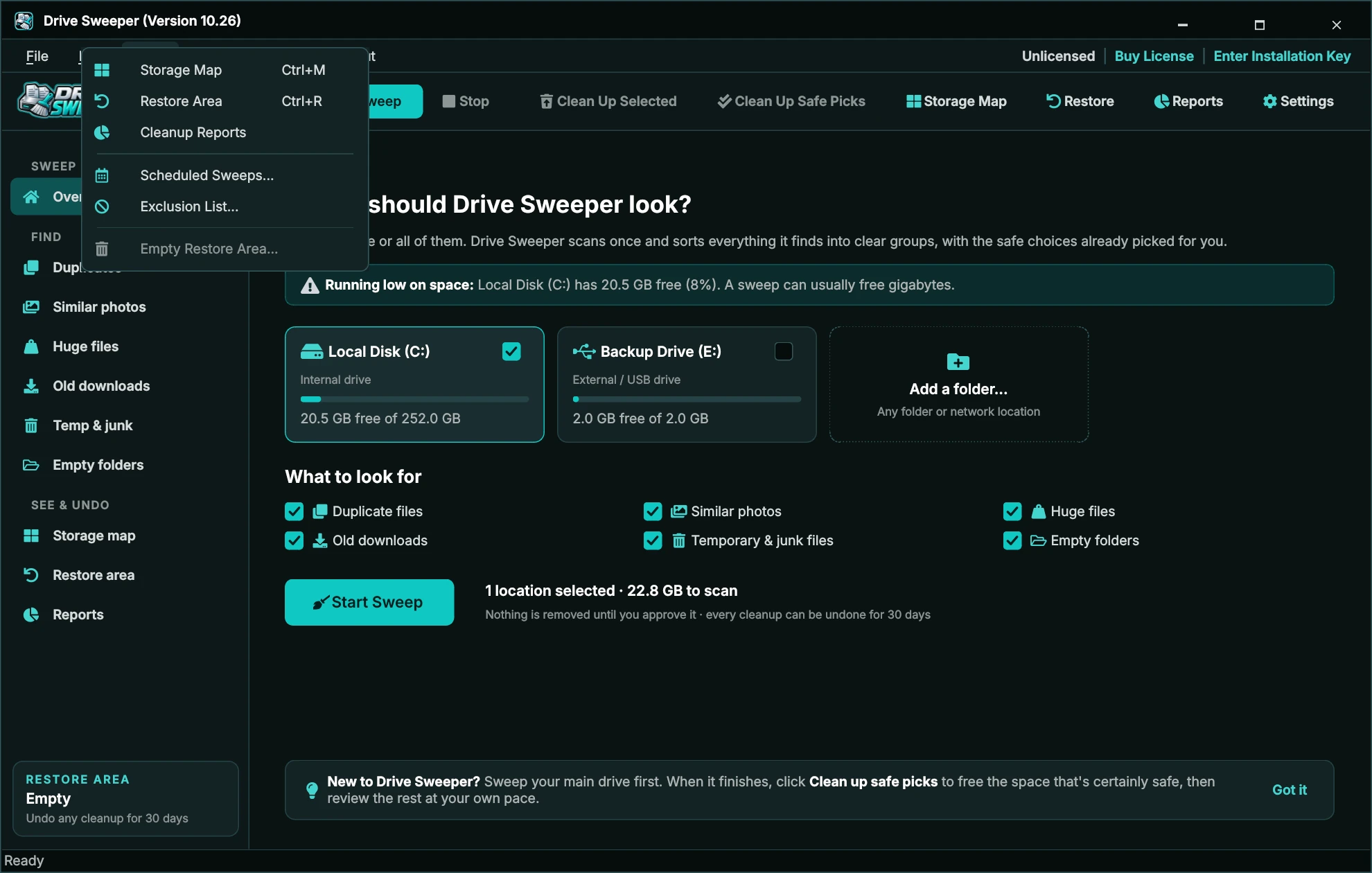

Tools
Storage Map (Ctrl+M), Restore Area (Ctrl+R), Cleanup Reports, Scheduled Sweeps..., Exclusion List... and Empty Restore Area...
Settings
| Command | What it does |
|---|---|
| Default Settings... Ctrl+, | Open Settings. |
| Enter Installation Key... | Activate Drive Sweeper on this PC. |
| Check License Status... | Your key (partly hidden), who it's licensed to, type, expiry and how many PCs use it. |
| Deactivate License... | Free this PC's activation so you can use the key on another PC. |
| Buy License | Opens drivesweeper.com to buy a license. Hidden once you're licensed. |
| Installation Key Website | Opens installationkey.com. |
| Recover Lost Installation Key | Opens installationkey.com/lookup. |
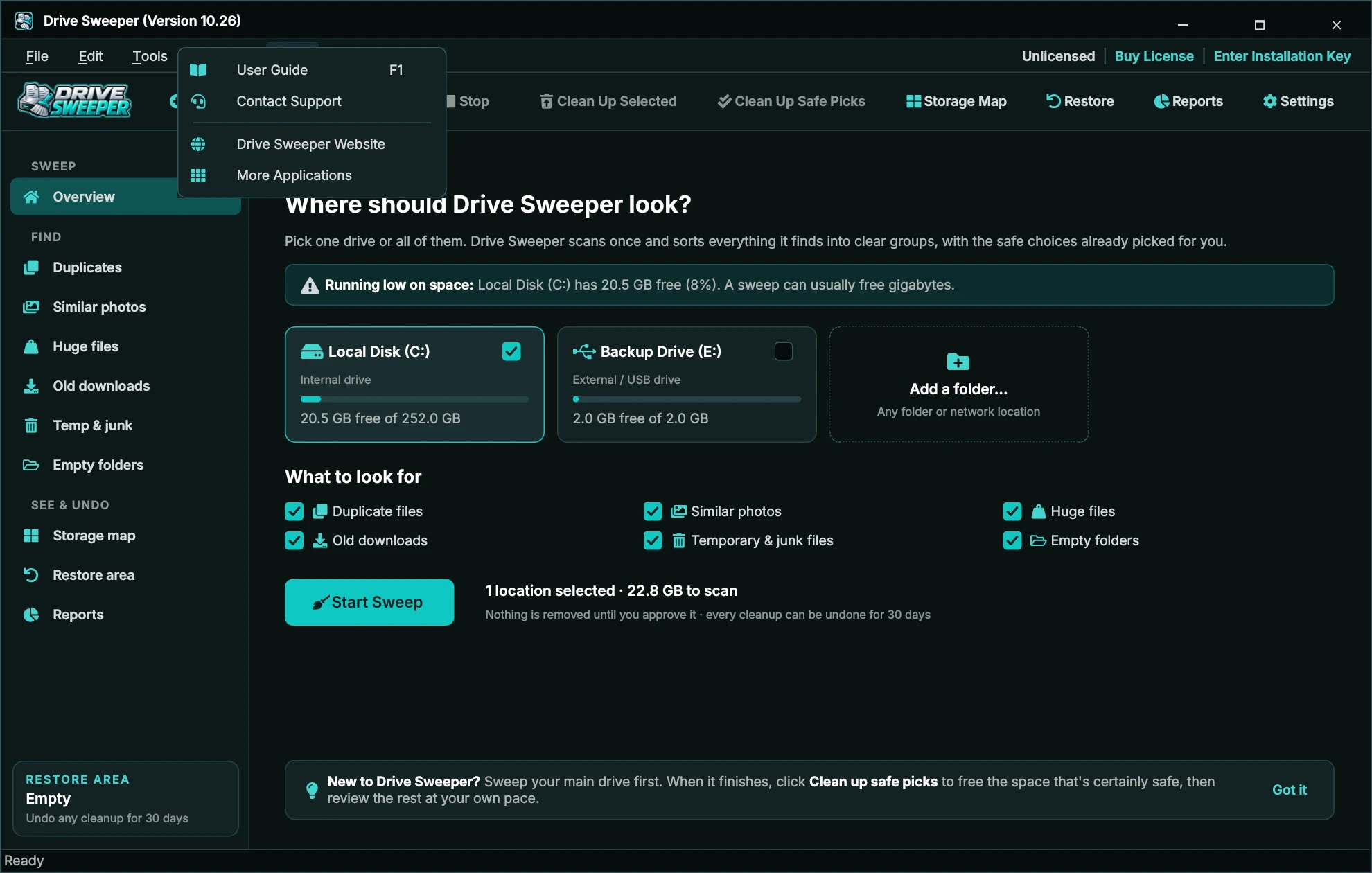
Help and About
Keyboard shortcuts
| Keys | What it does |
|---|---|
| Ctrl+N | New sweep |
| Ctrl+O | Add a folder to sweep |
| F5 / Esc | Start / stop a sweep |
| Delete | Clean up the ticked items |
| Ctrl+F | Find |
| Ctrl+Shift+S | Select safe picks |
| Ctrl+A / Ctrl+D / Ctrl+I | Select all / deselect all / invert selection |
| Ctrl+M | Storage map |
| Ctrl+R | Restore area |
| Ctrl+E | Export results |
| Ctrl+, | Settings |
| Backspace | Storage map: up one folder |
| F1 | This User Guide |
| Alt+F4 | Exit |
Your Installation Key
Your Installation Key is in your purchase email and on your download page. It looks like XXXX-XXXX-XXXX-XXXX. It activates Drive Sweeper on your PC; one key works on the number of PCs your license allows.
Lost your Installation Key?
Look it up at installationkey.com/lookup with the email address you used to buy Drive Sweeper - it's the quickest way to get it back. If that doesn't find it, contact support.
The license row
The top right of the main window always shows one license status:
| You see | Meaning |
|---|---|
| Unlicensed | Buy License | Enter Installation Key | Drive Sweeper isn't activated on this PC yet. You can sweep, use the storage map, review results and restore; removing files needs a key. |
| License Invalid | Buy License | Enter Installation Key | This PC's activation needs attention (see the messages below). Cleaning up is paused. |
| ✓ Licensed | Everything is unlocked. The purchase options are hidden. |
Buy License always opens the Drive Sweeper website, drivesweeper.com.
Activating
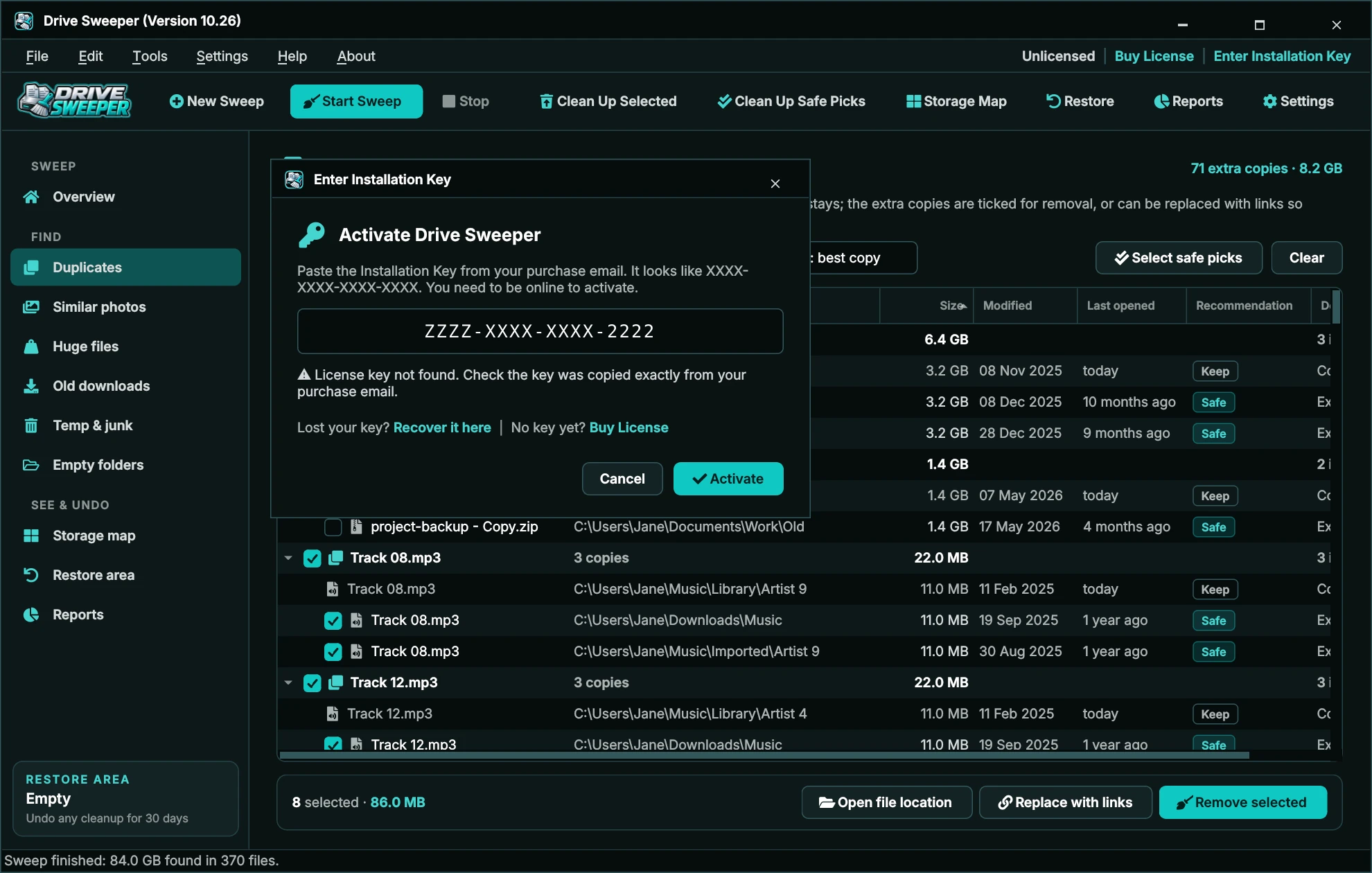
- Click Enter Installation Key in the license row, or choose Settings › Enter Installation Key...
- Paste or type your key. Dashes are added for you, so it doesn't matter if you copy it with or without them. Activate lights up when the key is complete.
- Click Activate. You need to be online. Everything unlocks straight away, with no restart.


For your security, once a key has been entered Drive Sweeper only ever shows it with the middle hidden, for example ABCD-XXXX-XXXX-WXYZ. On Windows your activation is stored encrypted for your Windows account.
License status
Settings › Check License Status... shows your masked key, who it's licensed to, the license type, the expiry date if there is one, how many of your PCs are using it and when it was last checked. Check now checks with the license service straight away.

Moving to a new PC
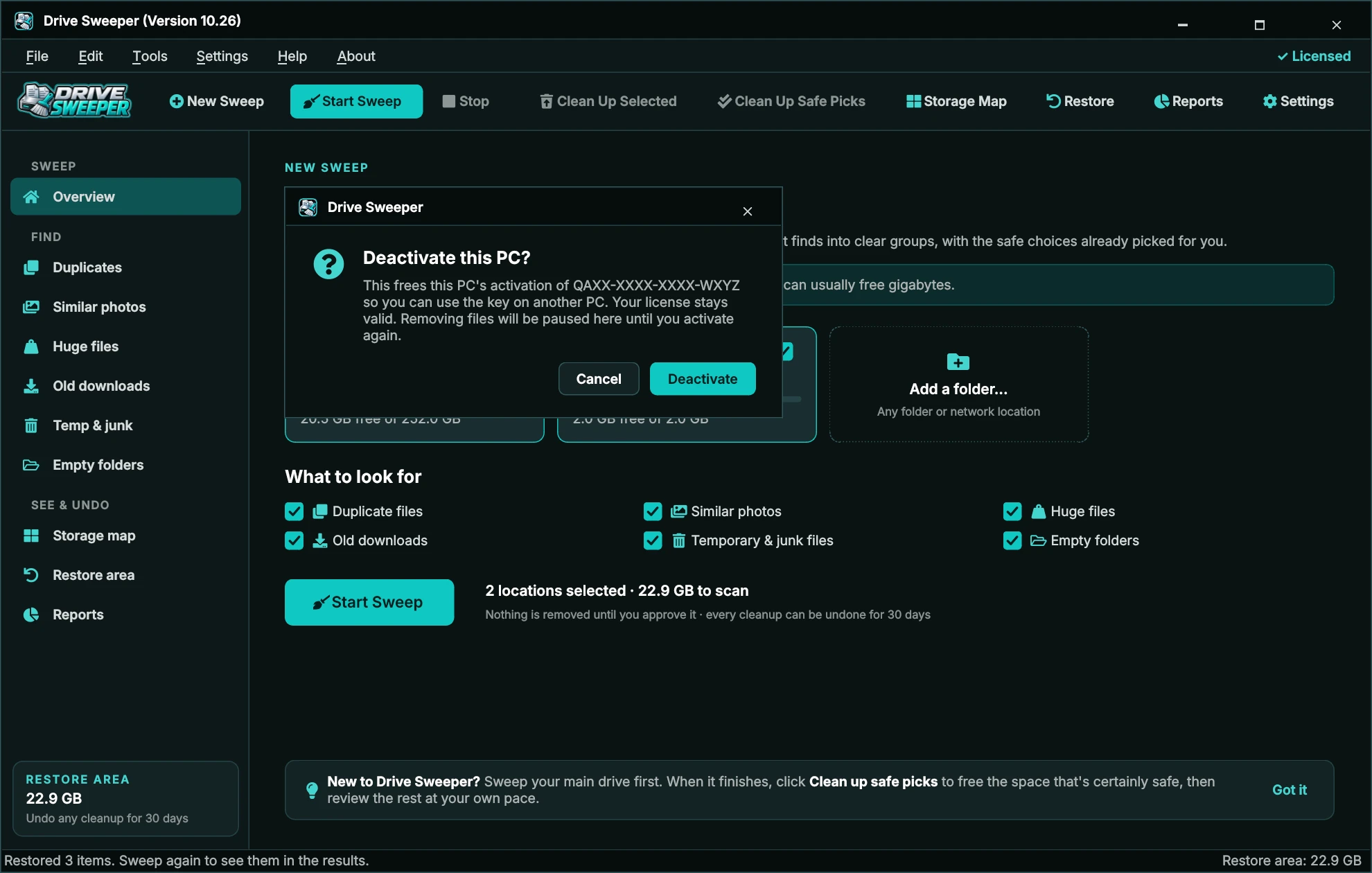
On the old PC choose Settings › Deactivate License... (or Deactivate This PC... in License Status), then install Drive Sweeper on the new PC and activate it with the same key. Deactivating needs an internet connection. If the old PC has died or been wiped, contact support and we'll free the activation for you.
Reinstalling
Reinstalling over the top keeps your settings and activation. If you reinstall Windows or replace major hardware, activate again with your key; if it says the maximum number of activations is reached, deactivate an old PC or contact support.
Working offline
Drive Sweeper checks your license quietly when it starts and once a day while it's open. If your PC is offline or the license service can't be reached, it keeps working normally for 7 days and checks again when you're back online.
License messages
"Please enter your Installation Key in the format XXXX-XXXX-XXXX-XXXX"
"License key not found"
"This key is for a different product"
"Maximum number of activations reached"
"Your license needs attention"

"Could not reach the license server"
"Drive Sweeper hasn't been able to check your license for 7 days"
Checking for updates
Updates are free. Choose About › Check for Updates.... Drive Sweeper shows its progress from 1% to 100% while it checks the Drive Sweeper website.
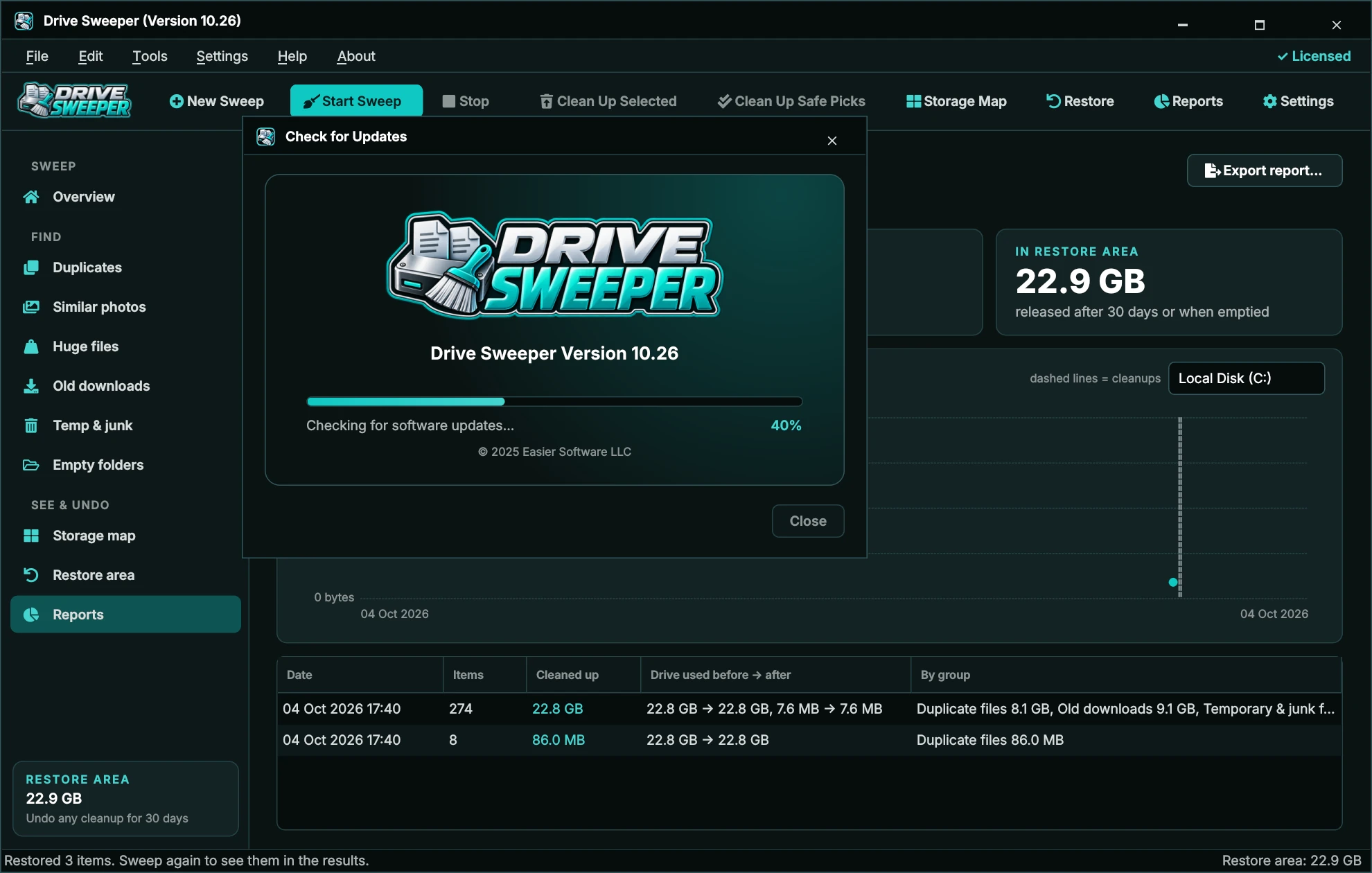
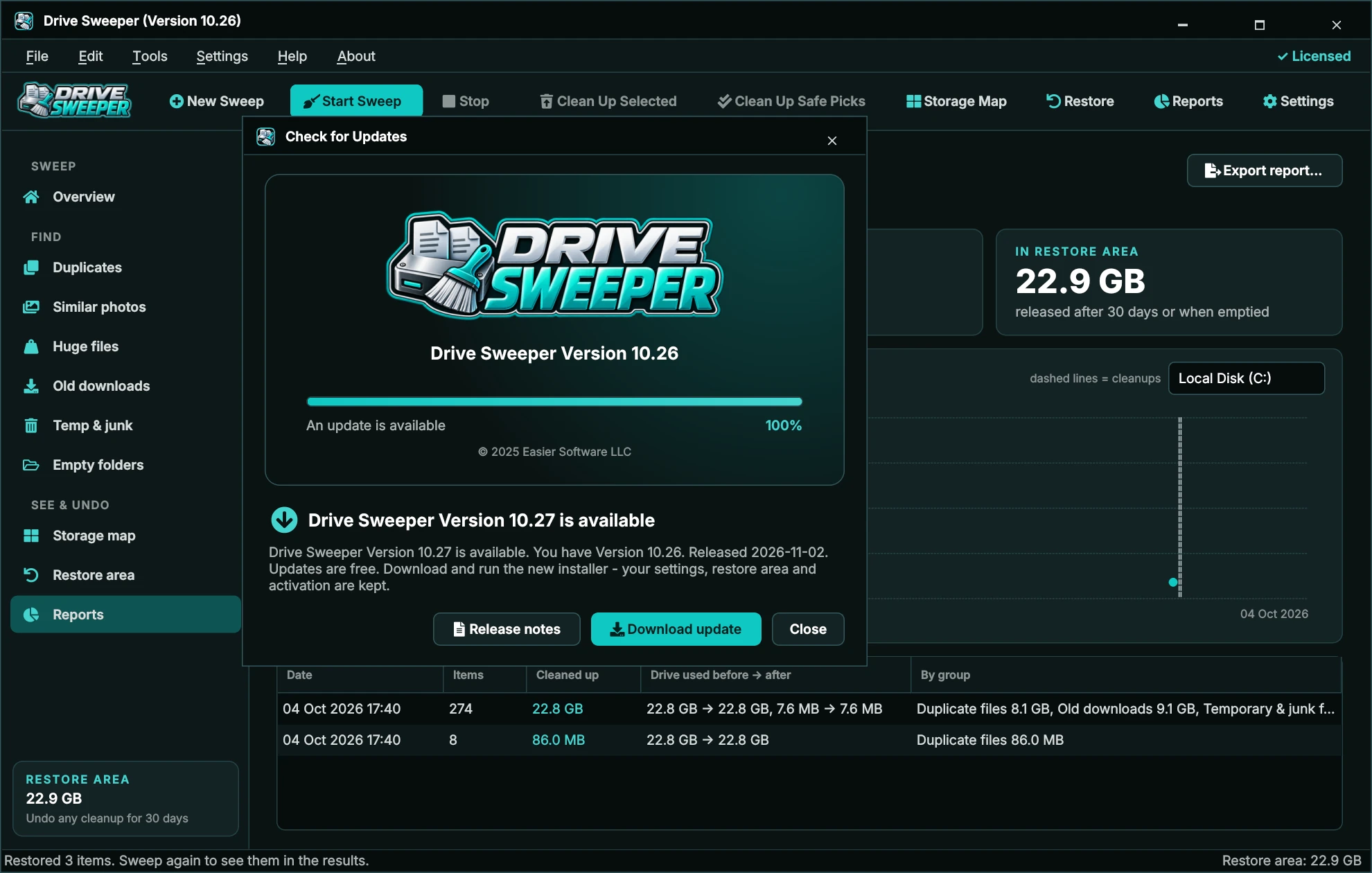
- An update is available - click Download update and run the new installer over the top of your current version. Your settings, restore area and activation are kept. Release notes shows what's new.
- You're up to date - you have the latest version.
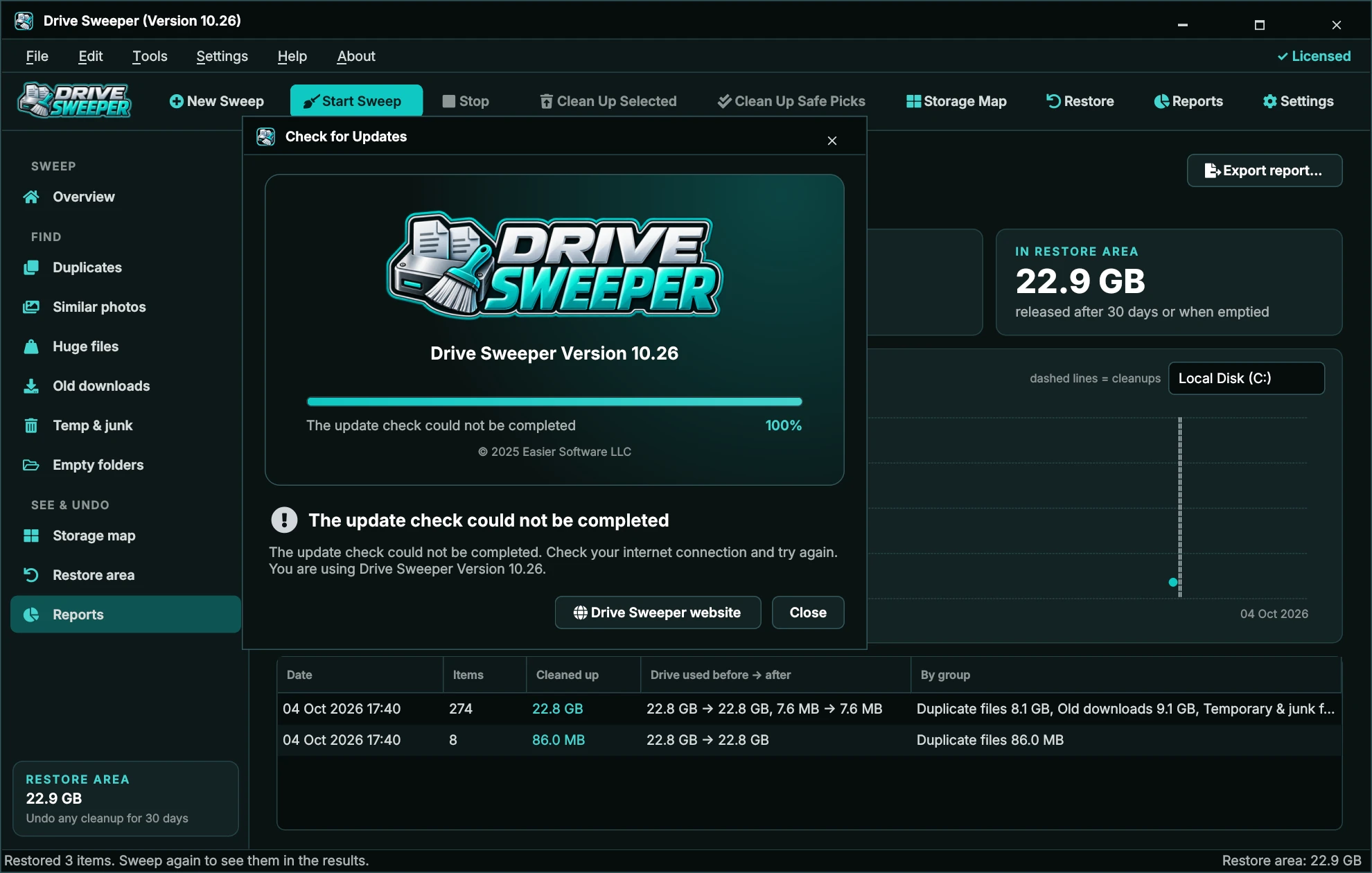
- The update check could not be completed - Drive Sweeper couldn't reach the website or the update information wasn't valid. It never tells you you're up to date unless the check actually succeeded. Check your connection and try again later, or visit drivesweeper.com.
Help, support & About
| Menu item | Opens |
|---|---|
| Help › User Guide F1 | This guide. |
| Help › Contact Support | easiersoftware.com/support |
| Help › Drive Sweeper Website | drivesweeper.com |
| Help › More Applications | Our other Windows software. |
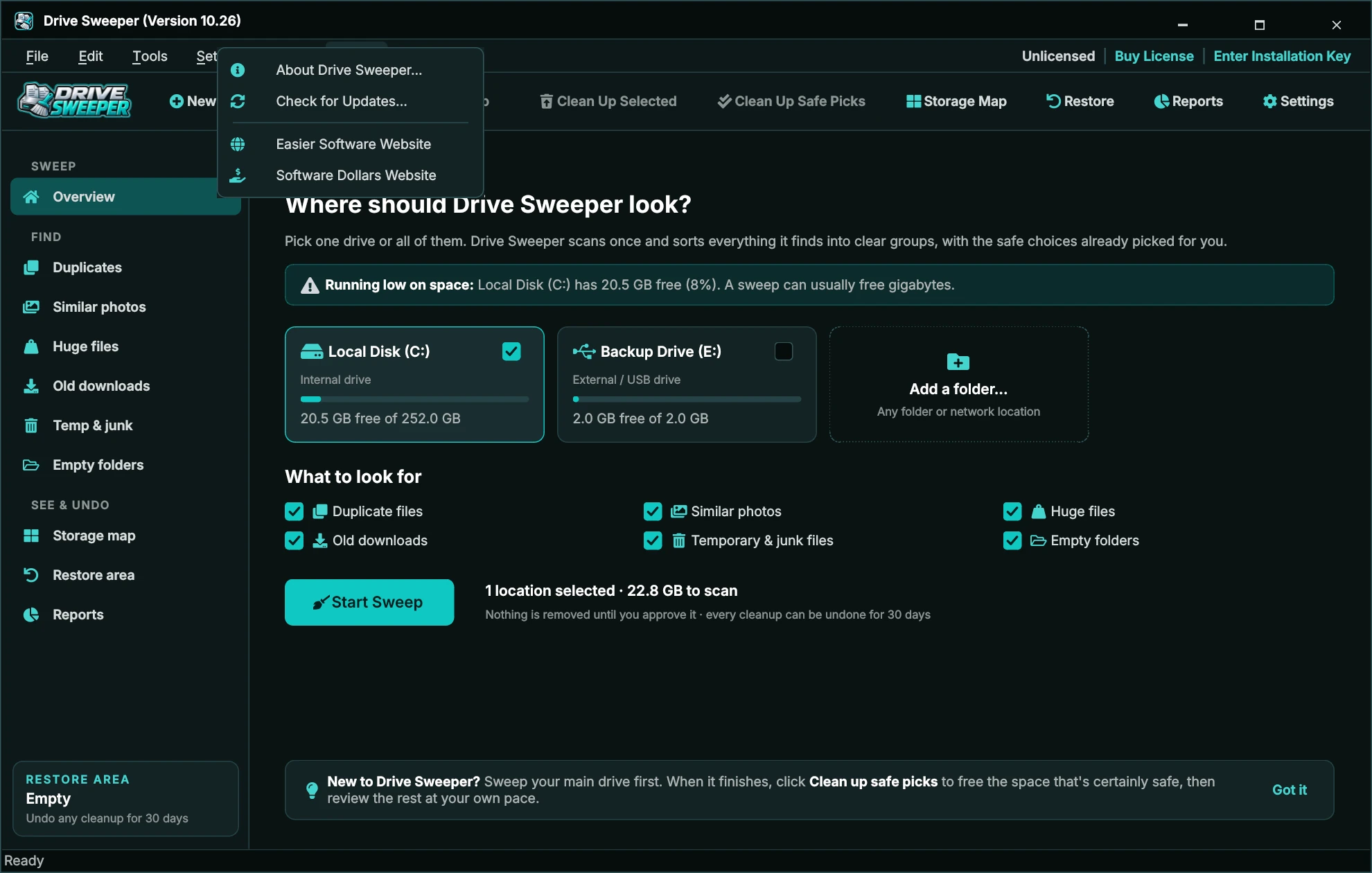
| About › About Drive Sweeper... | Version, license status and links (below). |
| About › Check for Updates... | See Checking for updates. |
| About › Easier Software Website / Software Dollars Website | easiersoftware.com / softwaredollars.com (affiliate program). |

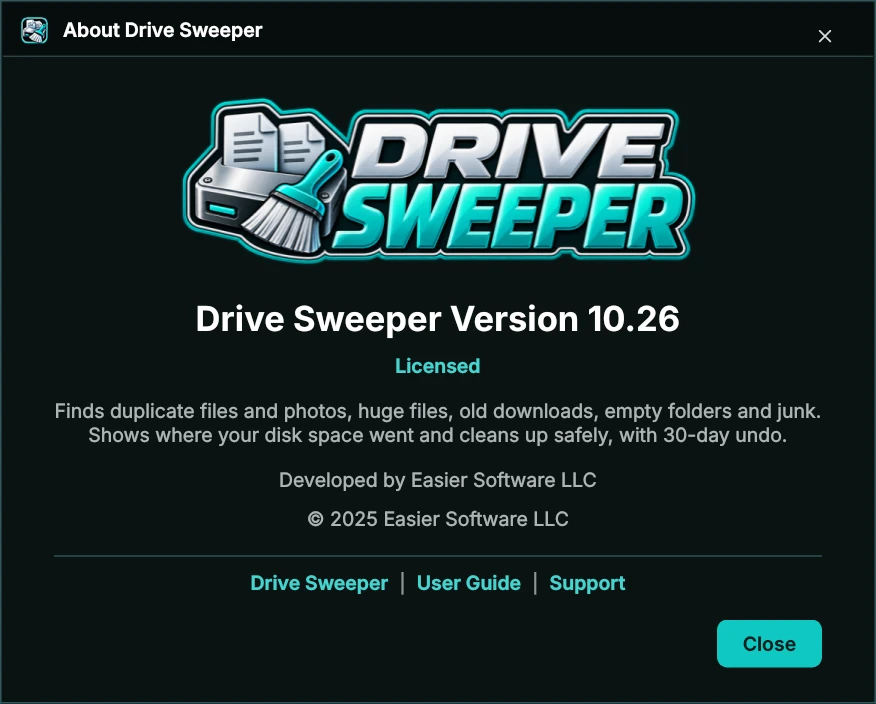
The About window shows Drive Sweeper Version 10.26, your license status, who developed it and links to the Drive Sweeper website, this User Guide and Support.
Troubleshooting
Clean up or Replace with links asks for an Installation Key
Some items were skipped during a cleanup
Windows Update leftovers or Windows temporary files were skipped with "Access denied"
Browser cache files were skipped
My drive's free space didn't go up after cleaning
A drive or folder isn't listed, or "couldn't be read"
A file I expected isn't in the results
The sweep stopped unexpectedly
Export failed
A restored file has "(restored)" in its name
A scheduled sweep didn't run
The update check could not be completed
Which version do I have?
"Drive Sweeper is already open"
Windows SmartScreen or my antivirus warns about the installer
Drive Sweeper won't start
%APPDATA%\Easier Software LLC\Drive Sweeper\Logs (paste that into the File Explorer address bar to open it). Logs never contain your full Installation Key.Still stuck?
We're happy to help. Tell us what you were doing and what the message said.
Frequently asked questions
Is it safe to use?
How does it find duplicates?
Can it find similar photos, not just exact copies?
How much space will I get back?
Does it work on external drives and network folders?
Does it include registry cleaning or speed boosters?
Does it delete anything automatically?
Does Drive Sweeper send my files or file names anywhere?
Is it a subscription?
Which versions of Windows are supported?
Updating & uninstalling
Updating
Use About › Check for Updates... and run the new installer over the top of your current version. Your settings, restore area and activation are kept.
Uninstalling
- If you're moving to a new PC, deactivate first (Settings › Deactivate License...).
- Restore anything you want from the restore area, or empty it (Tools › Empty Restore Area...) to release the space.
- Open Windows Settings › Apps, find Drive Sweeper and click Uninstall. Any scheduled sweep is removed.
Your settings and reports stay in %APPDATA%\Easier Software LLC\Drive Sweeper in case you reinstall; delete that folder to remove them too. Your own files are never touched by uninstalling.